ESR for iPad Air 11″ (M3/M2) & 10.9″ (5th/4th Gen) Case

ESR for iPad Air 11″ (M3/M2) & 10.9″ (5th/4th Gen) Case with Keyboard, Magnetic Detachable Keyboard, Portrait/Landscape Modes, Large Click-Anywhere Trackpad, Backlit Keys, Shift Series, Dark Gray
The video showcases the product in use.The video guides you through product setup.The video compares multiple products.The video shows the product being unpacked.ESR for iPad Air 11″ Case with Keyboard
Merchant videoDo ESR iPad cases work with ESR keyboards?
Each ESR keyboard comes with its own specially designed case to ensure the best fit and functionality. For the best experience, only use the case included with your keyboard.
How do I enable clicking on the trackpad?
Connect your keyboard to your iPad via Bluetooth, go to Settings > General > Trackpad, and enable Tap to Click.
How can I adjust the tracking speed?
Connect your keyboard to your iPad via Bluetooth, then go to Settings > General > Trackpad and select your preferred tracking speed (10 levels; try setting it above 5 for smoother control).
How can I improve trackpad responsiveness?
If your trackpad or iPad screen feels slow or unresponsive, try turning off AssistiveTouch. Go to Settings > Accessibility > Touch > AssistiveTouch, then turn it off.
What should I do if my keyboard isn’t connecting or responding?
1. Check compatibility: Make sure your keyboard is compatible with your iPad.
2. Power it on: Slide the switch to the ON position.
3. Charge the keyboard: If unused for a while, the battery may be low — try charging it before reconnecting.
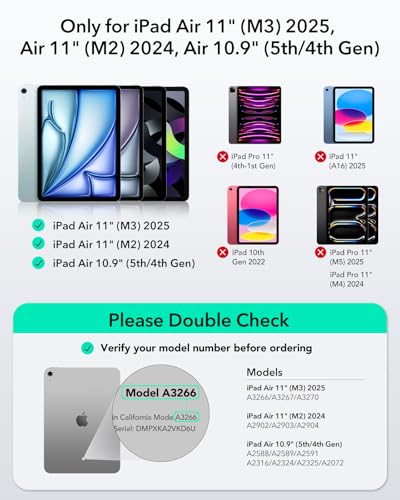
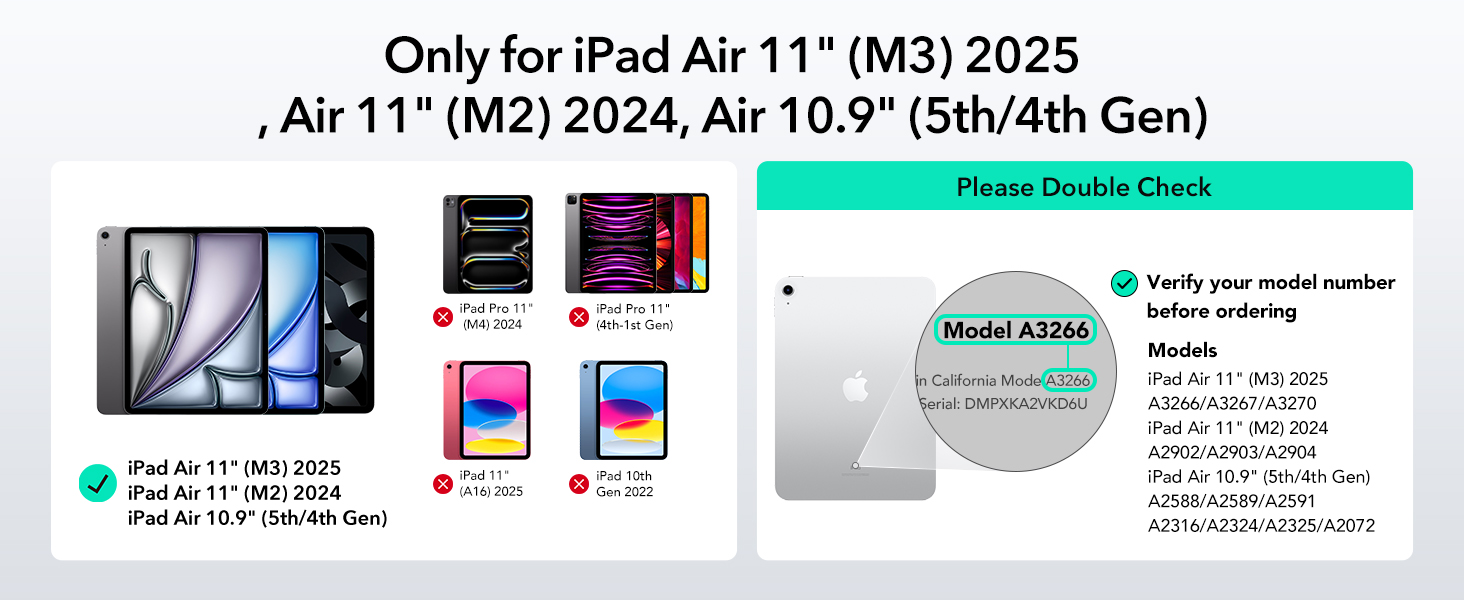
- Compatibility: only for iPad Air 11" (M3/M2) 2025/2024, iPad Air 10.9" (5th/4th Gen) 2022/2020; Models: A3266, A3267, A3270, A2902, A2903, A2904, A2588, A2589, A2591, A2316, A2324, A2325, A2072
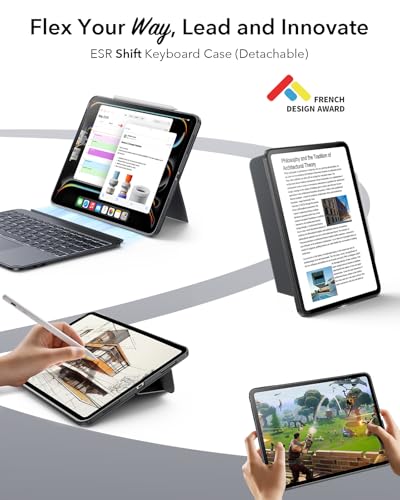
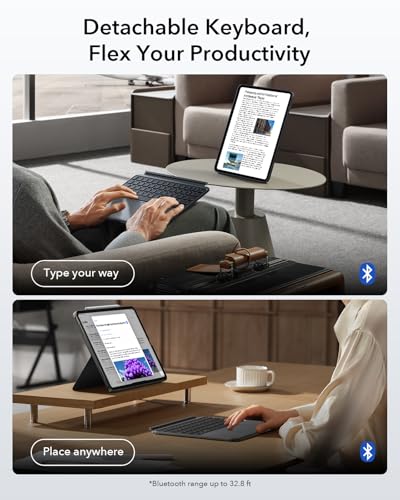
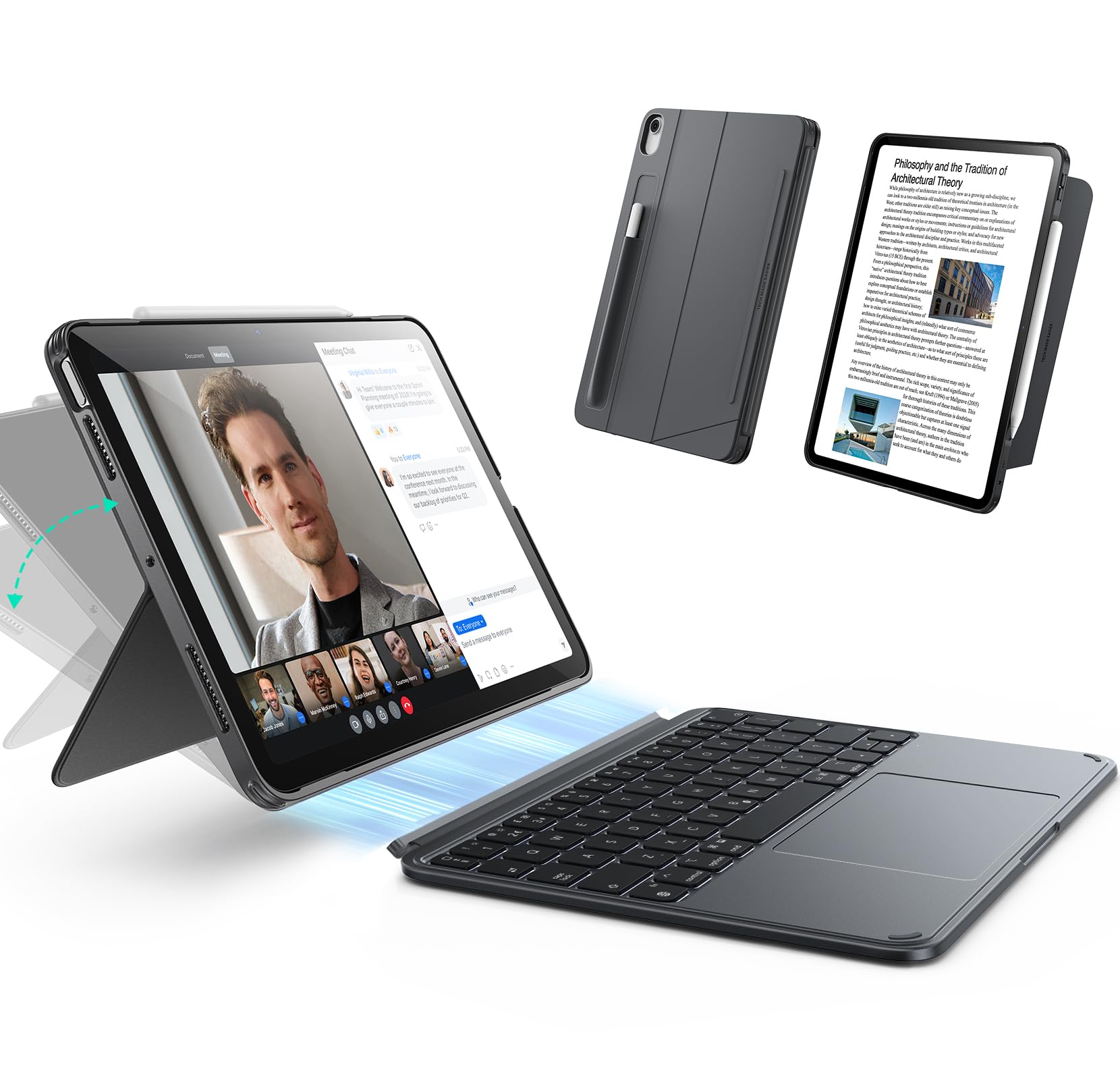
- Magnetic Detachable Design: a secure magnetic connection lets you attach the keyboard for typing or remove it for a streamlined tablet experience—perfect for reading, watching, or drawing; instantly transform your iPad into a laptop and back again
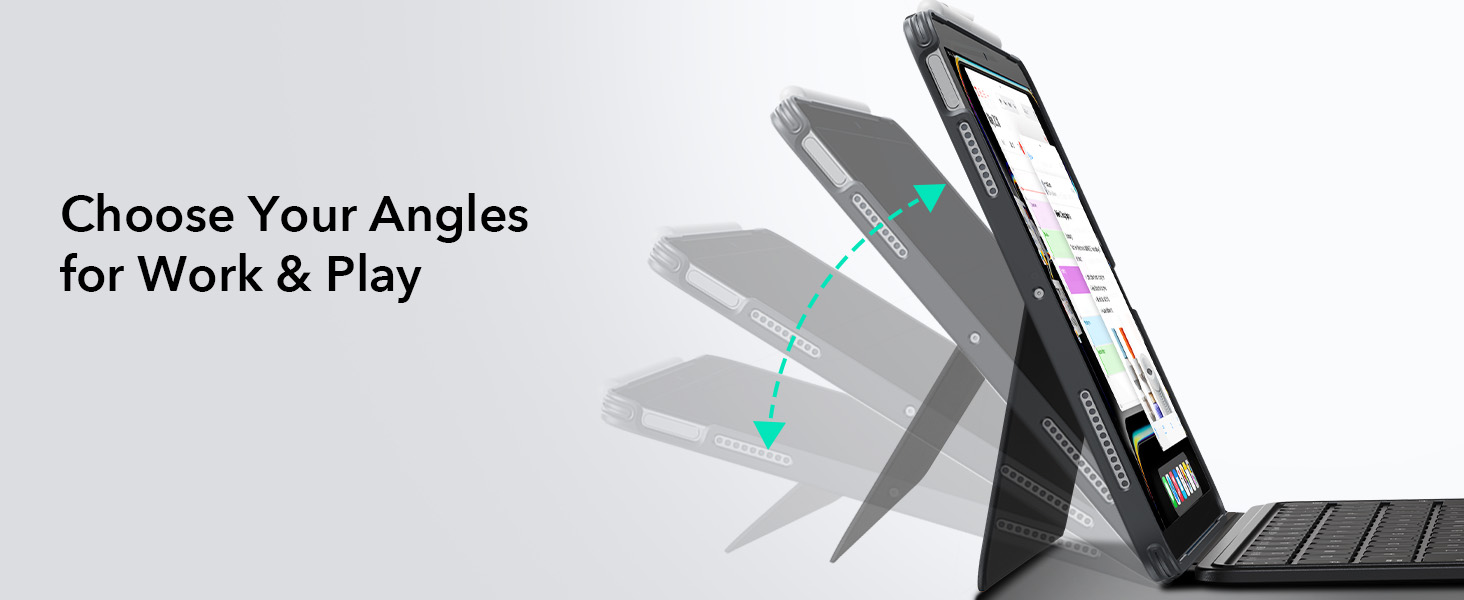
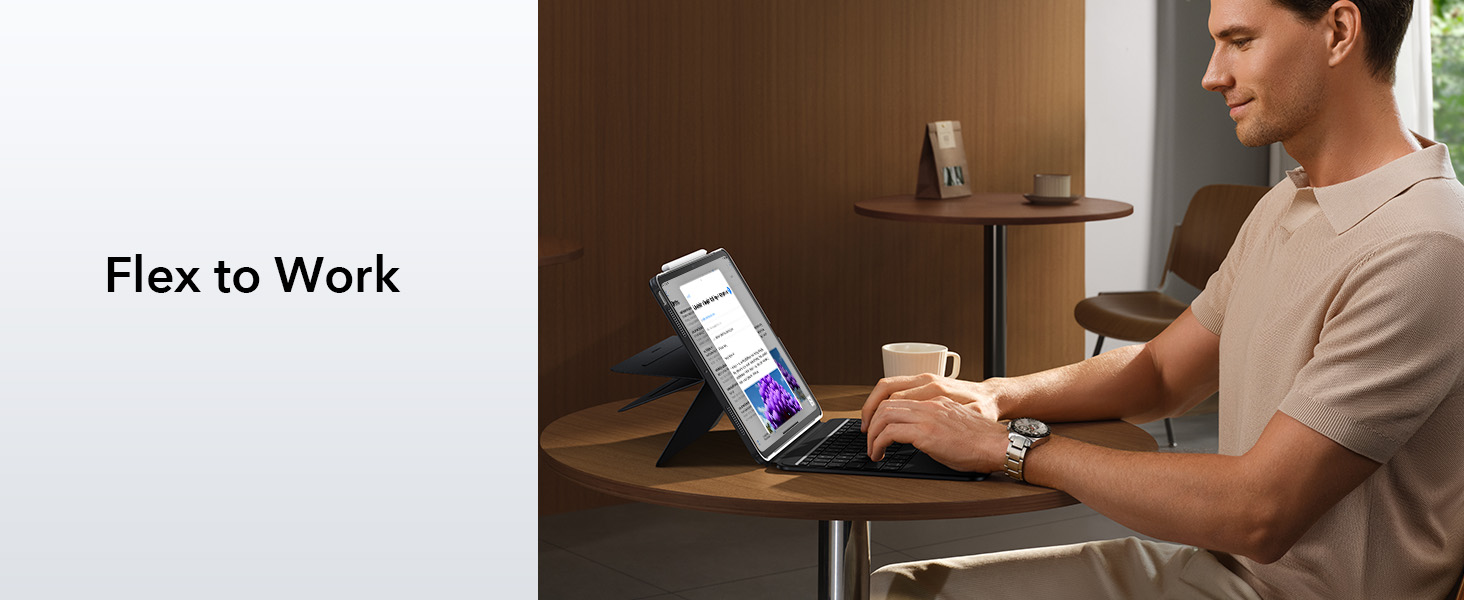
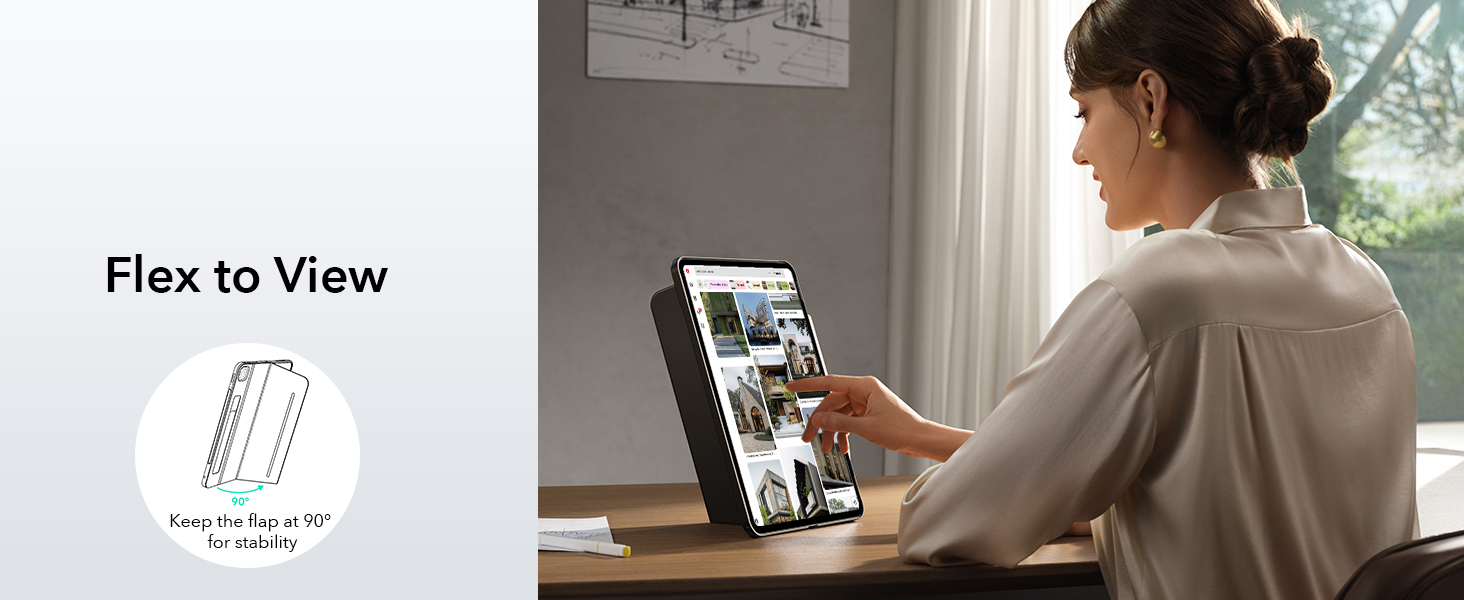
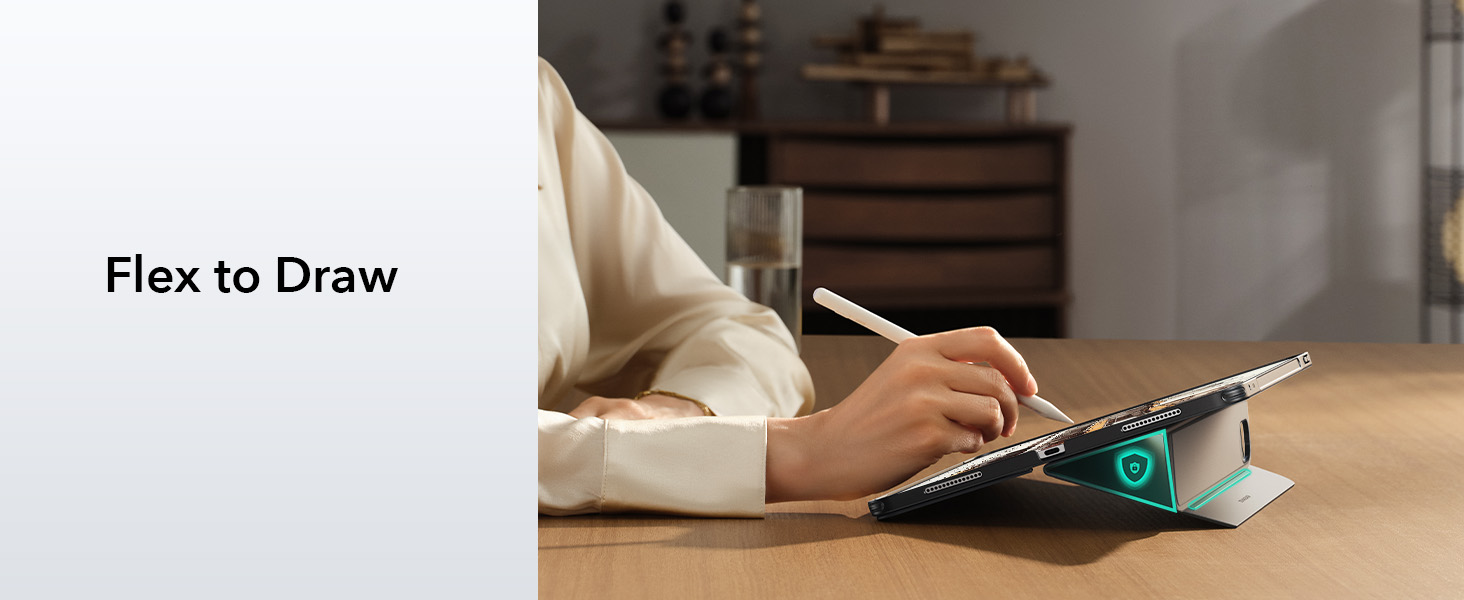
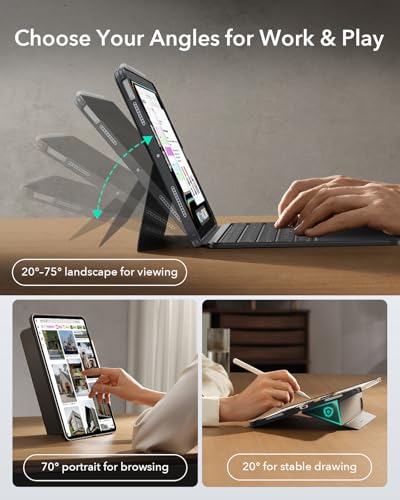
- Ultimate Flexibility: effortlessly switch between portrait and landscape modes for work, study, or entertainment; the adjustable landscape stand (20°–75°) adapts to your perfect viewing angle, while the sturdy 20° low-angle magnetic support is ideal for writing or drawing; detach into single-case mode for gaming—enjoy unmatched versatility, unlike fixed designs
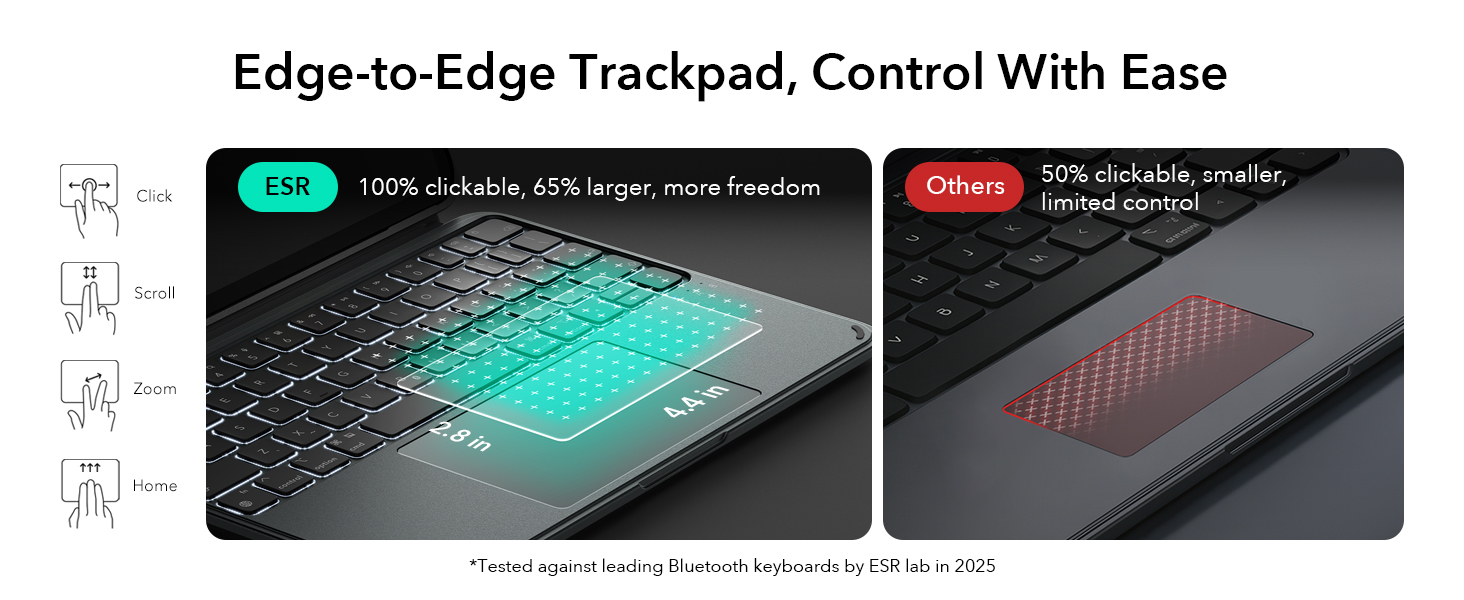
- Larger Click-Anywhere Trackpad: the fully responsive, 65% larger trackpad features a 112 × 70 mm surface, providing smoother and more precise control; this iPad keyboard enhances navigation with full iOS gesture support for easier editing, browsing, or switching apps
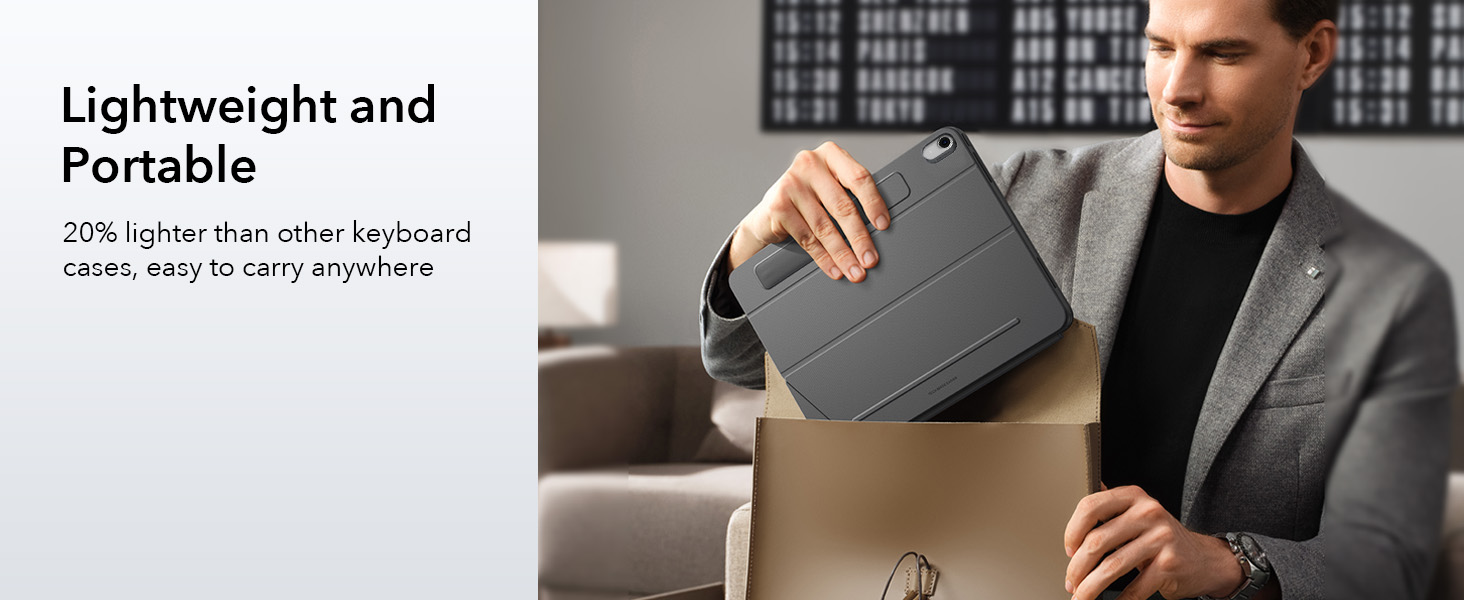
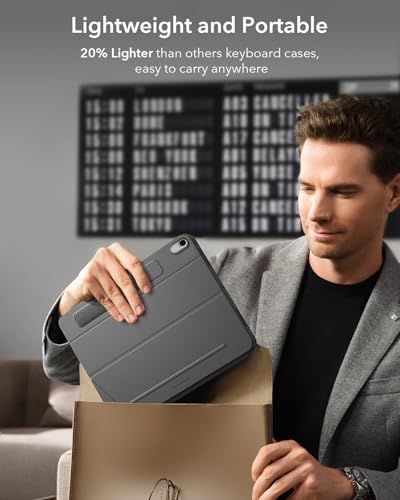
- Ultra-Thin & Lightweight: at just 7.2 mm thick, this keyboard is super slim and easy to carry anywhere; the lightweight design fits perfectly into your daily routine—great for working on the go without any extra bulk
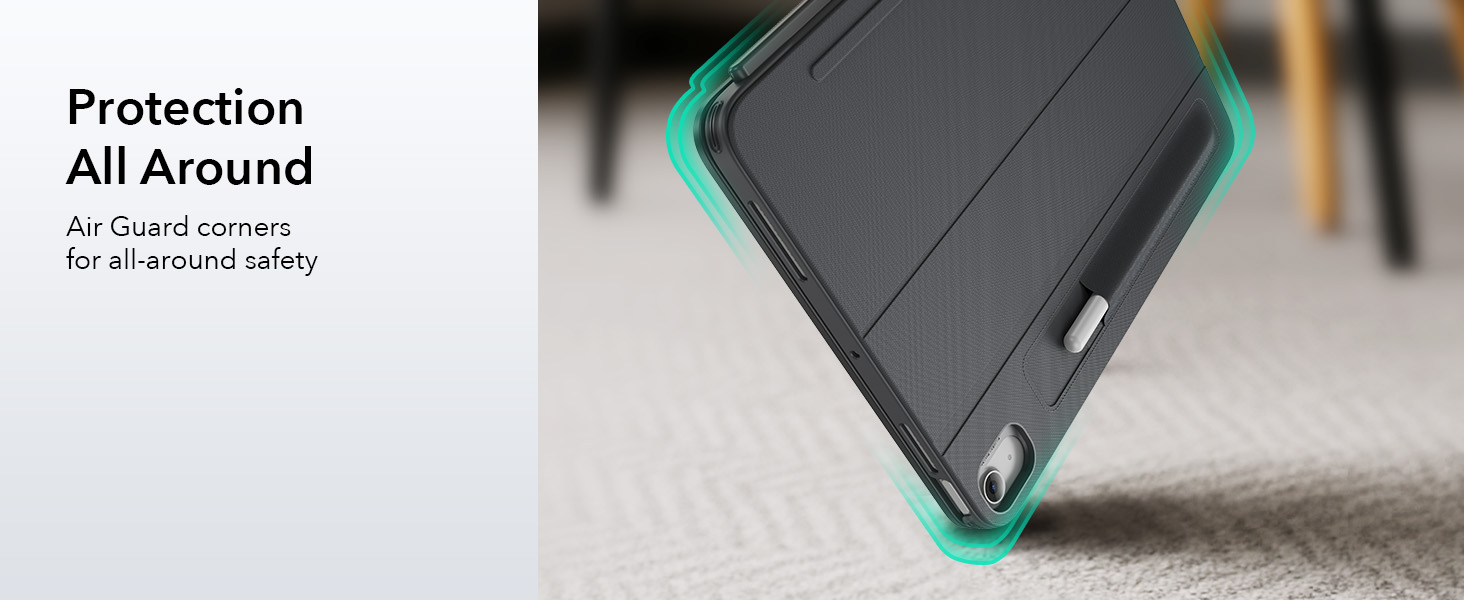
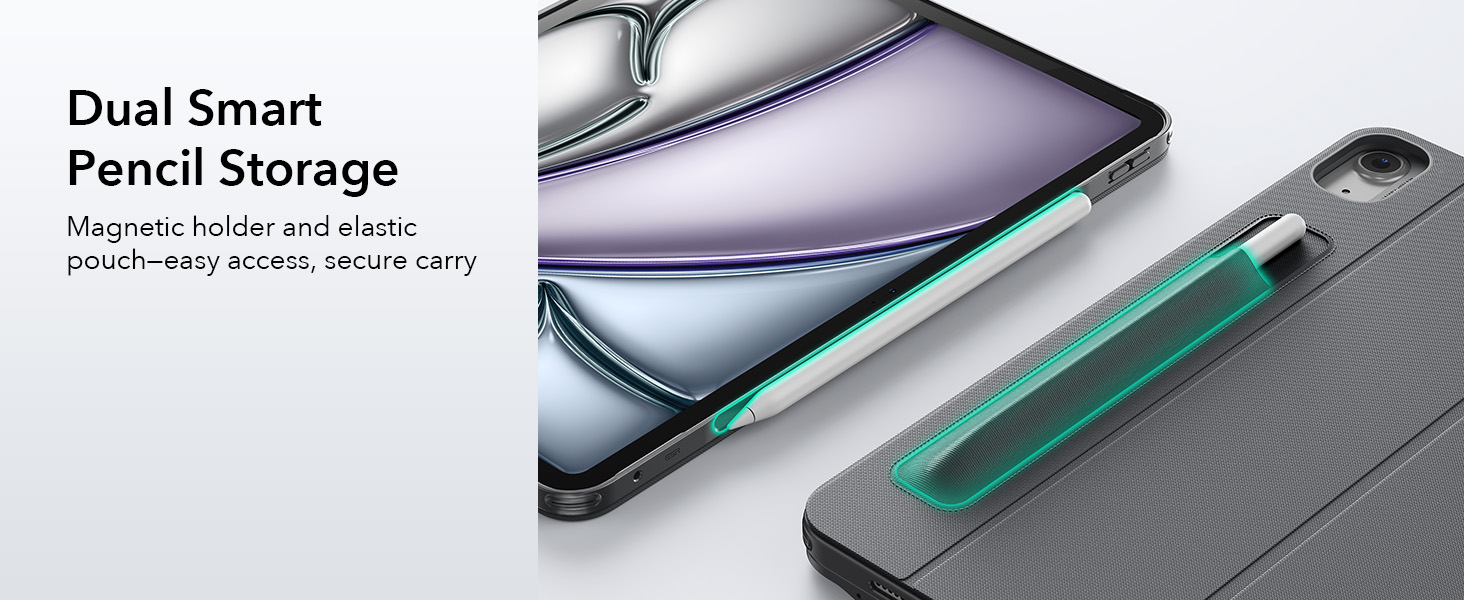
- Full Protection with Pencil Holder: a durable form-fit cover with reinforced Air Guard corners and magnets keeps your iPad safe from scratches, drops, and dust; the stylus holder prevents your pencil from being scratched and falling off


| SKU: | B0FWBC79KT |
| Weight: | 560 g |
| Dimensions: | 29.6 x 21.8 x 2.9 cm; 560 g |
| Brand: | ESR |
| Model: | iPad Air 11" (M3/M2)&10.9" (5th/4th Gen) |
| Colour: | Dark Gray |
| Manufacture: | ESR |
| Colour: | Dark Gray |
Product Description
The video showcases the product in use.The video guides you through product setup.The video compares multiple products.The video shows the product being unpacked.ESR for iPad Air 11″ Case with Keyboard
Merchant video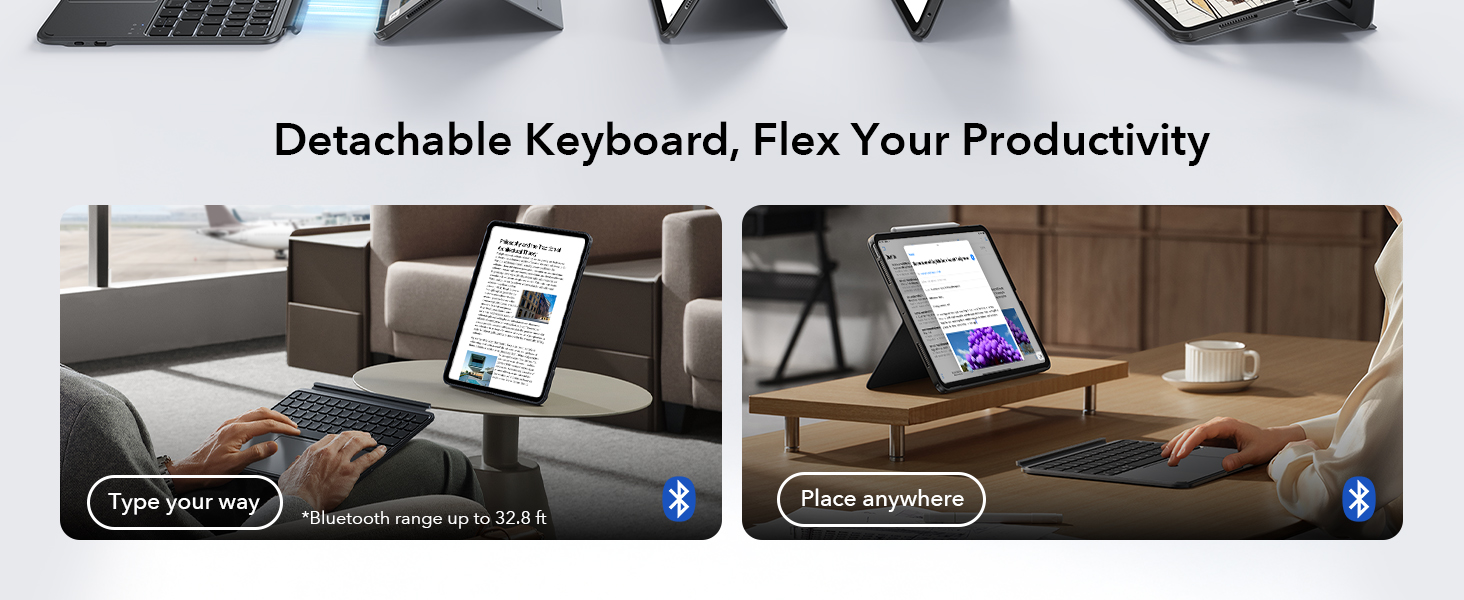

Do ESR iPad cases work with ESR keyboards?
Each ESR keyboard comes with its own specially designed case to ensure the best fit and functionality. For the best experience, only use the case included with your keyboard.
How do I enable clicking on the trackpad?
Connect your keyboard to your iPad via Bluetooth, go to Settings > General > Trackpad, and enable Tap to Click.
How can I adjust the tracking speed?
Connect your keyboard to your iPad via Bluetooth, then go to Settings > General > Trackpad and select your preferred tracking speed (10 levels; try setting it above 5 for smoother control).
How can I improve trackpad responsiveness?
If your trackpad or iPad screen feels slow or unresponsive, try turning off AssistiveTouch. Go to Settings > Accessibility > Touch > AssistiveTouch, then turn it off.
What should I do if my keyboard isn’t connecting or responding?
1. Check compatibility: Make sure your keyboard is compatible with your iPad.
2. Power it on: Slide the switch to the ON position.
3. Charge the keyboard: If unused for a while, the battery may be low — try charging it before reconnecting.