Android 14.0 TV Box 2025, 2GB RAM 16GB ROM, RK3518 4K Ultra
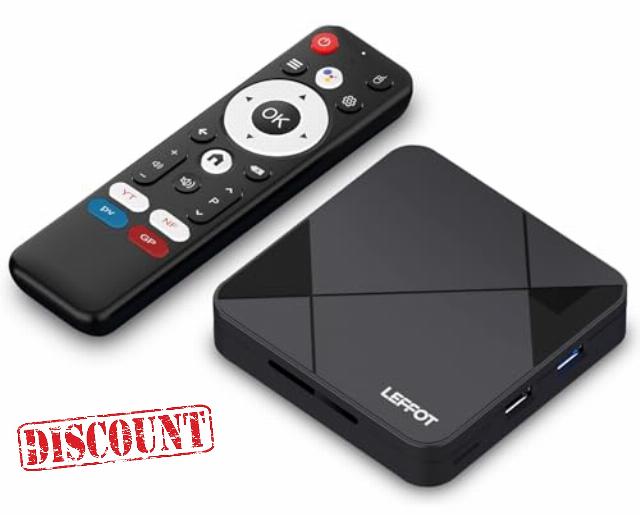
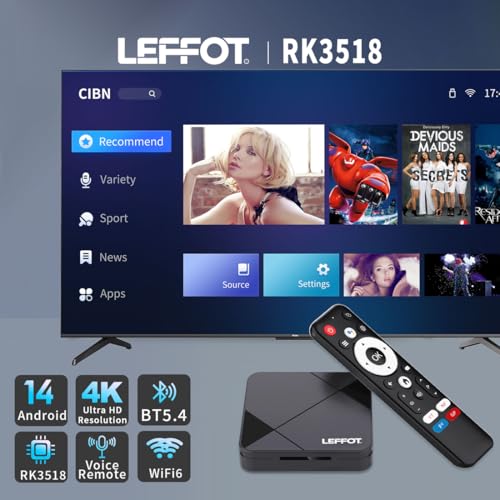
Android 14.0 TV Box 2025, 2GB RAM 16GB ROM, RK3518 4K Ultra HD Home Streaming Device for TV, Android Box with Voice Control, 2.4G & 5G WiFi 6, BT 5.4, USB 3.0, Rockchip RK3518 Quad-core A53
Warm Tips
If you encounter compatibility, application downloads, or any other issues, please let us know and we will provide you with a solution as soon as possible.
In daily use, most of the problems encountered can be fixed by first restoring the factory settings and then upgrading the system.
- Restore factory settings path: Click on "Settings" → dropdown, click on "Device Preferences" → click on "About" → click on "Restore factory settings or reset".
- System upgrade path 1: Click on "Settings" → dropdown, click on "Device Preferences" → click on "About" → click on "System Upgrade".
- System upgrade path 2: On the homepage, click on "More APP" to enter the "More APP" interface ->find the "FOTA Update" APP, click on this application to enter the system upgrade.
Application compatibility:
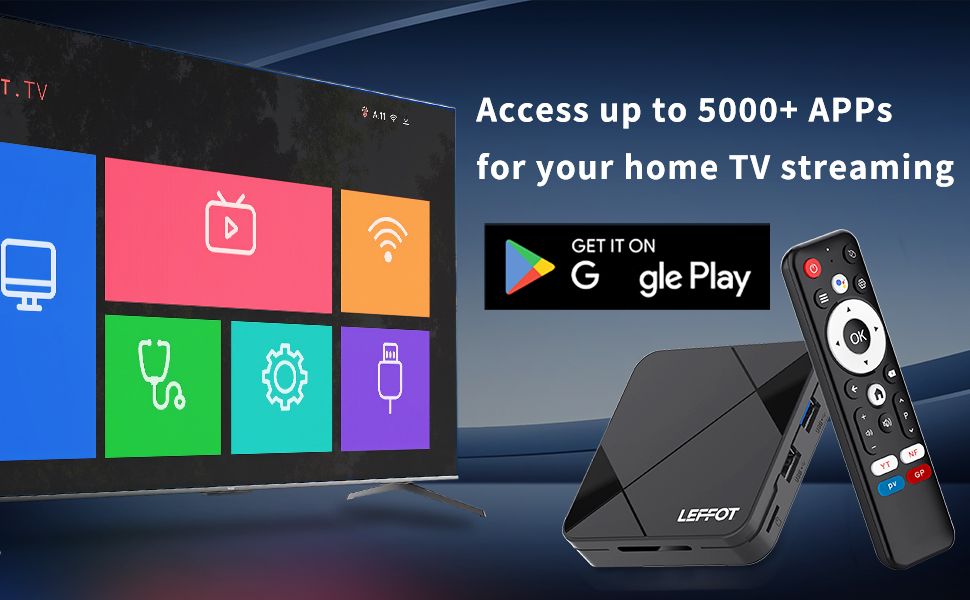
- Our TV box comes pre installed with apps such as Google Play, Netflix, Prime Video, YouTube, and more. It should be noted that these application manufacturers recommend using pre installed applications as they are already compatible with the TV box's system. Manufacturers do not recommend installing or upgrading other versions to avoid compatibility issues that may prevent the application from functioning properly.
- If upgrading these applications results in compatibility issues or inability to use them properly, you can restore the normal use of the applications by resetting them to factory settings.
- If there are compatibility issues with the product during normal use, a system upgrade can be performed to fix them.
Application installation:
- Most applications can be installed from Google Play, and it is recommended to choose the 32-bit system version or the universal version.
- Download and install the required apps, such as Disney+, through the APKPure app store.
- Download the APK file and install the application through a USB drive.
USB installation method: Download the APK format (32-bit or universal version of the application, non ZIP/RAR compressed file) application installation package to the USB drive, and download the TV version (mobile version may not be compatible with remote control operation); Format the USB drive in FAT32/exFAT format (NTFS may not be recognized); Then, open the USB drive through "Media Center" or "File Manager", long press the APK file and select "Package Installer" to install.
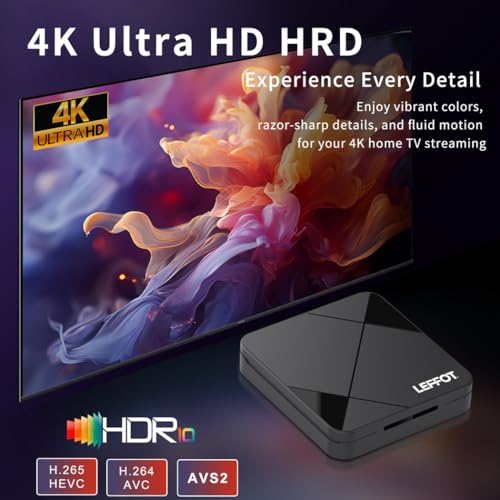
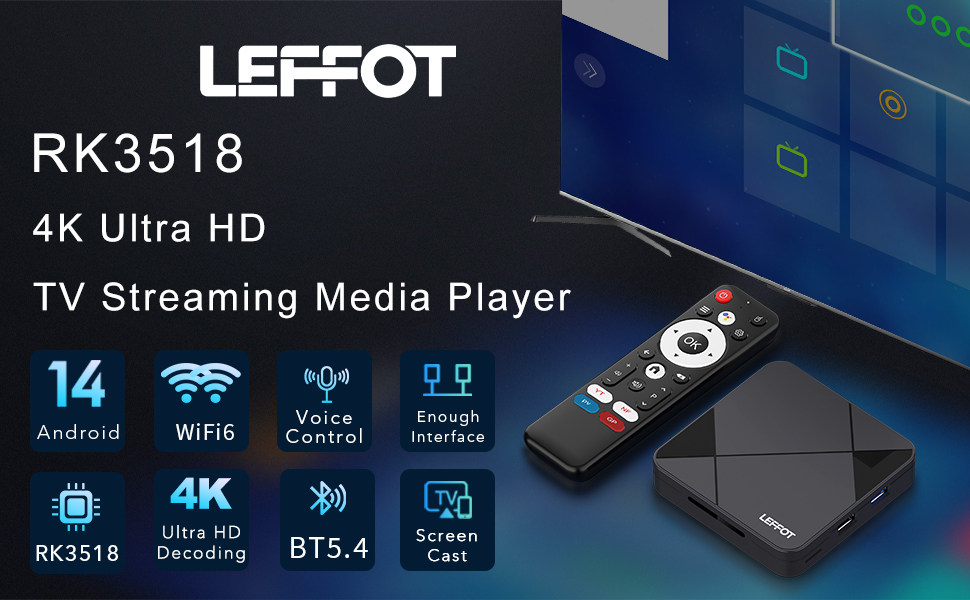
- 4K Ultra HD Streaming: Enjoy stunning visuals with this 4K streaming device for TV, supporting 4K@60fps decoding, HDR10, and smooth playback of high-bitrate videos. Perfect for Android TV Box 2025 users seeking cinema-quality streaming on their home televisions without lag or buffering interruptions.
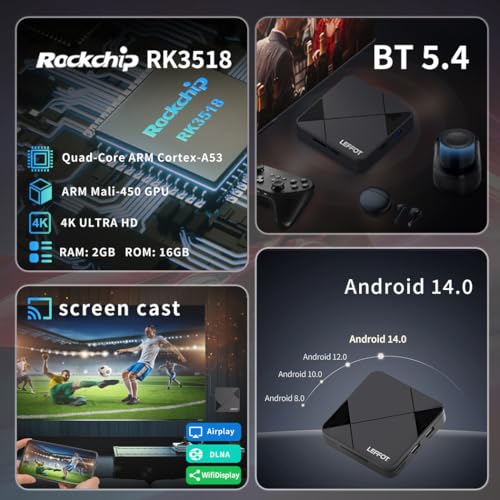
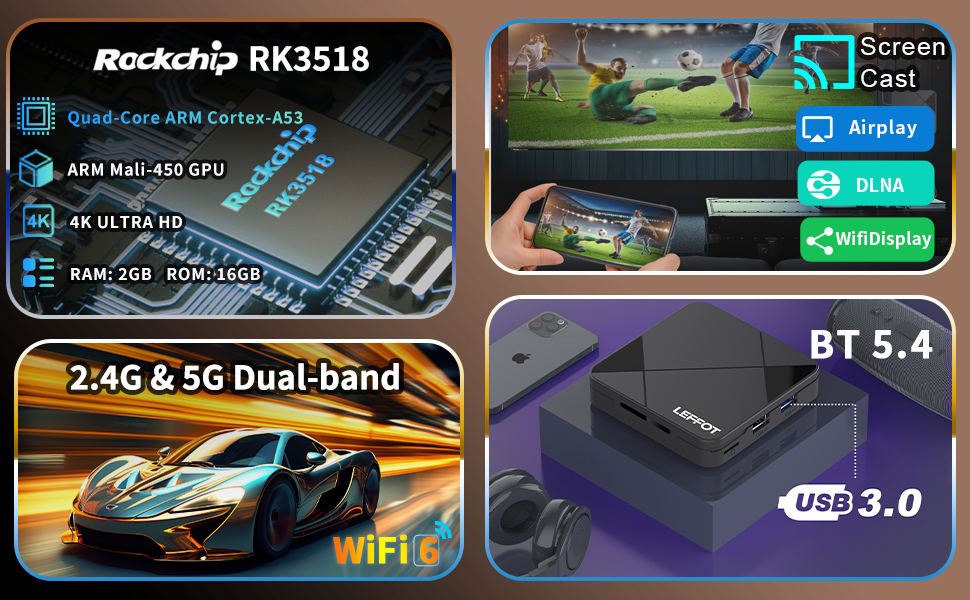
- Smooth Performance with Latest Hardware: Powered by a Rockchip RK3518 Quad-Core CPU and ARM Mali-450 GPU, this TV box Android runs Android 14 for efficient tasking, fast app loading, and system stability—ideal for daily streaming without slowdowns.
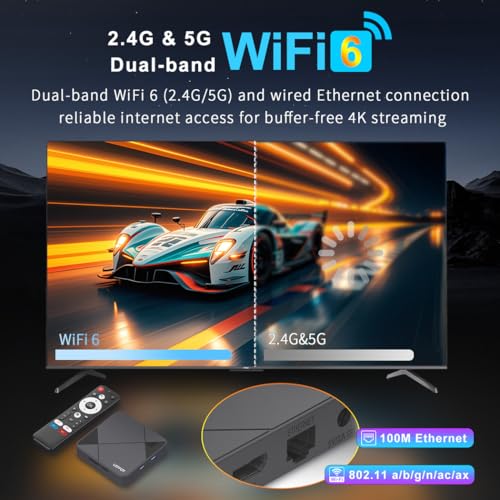
- Dual-Band Wi-Fi 6 & Wired Ethernet: Dual-band 2.4G/5G Wi-Fi 6 and a 100M Ethernet port ensure ultra-stable connections for buffer-free 4K streaming. Whether you're watching via IPTV box or online platforms, enjoy uninterrupted viewing.
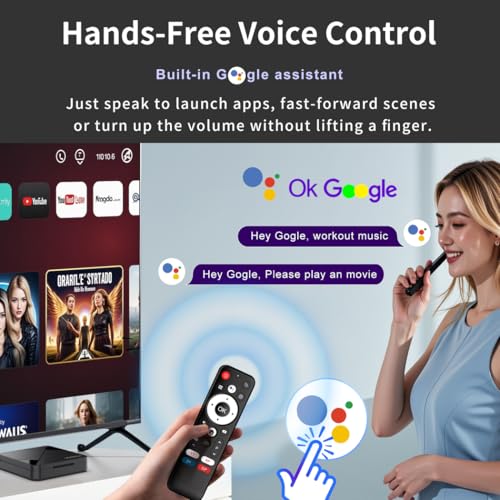
- Voice Control for Convenience: The included BT remote supports voice commands for hands-free navigation, making it easy to search, play, or adjust settings on this smart TV box—accessible for all family members.
- Ample 2GB RAM + 16GB Storage: With sufficient memory and storage, this Android box allows seamless app installations and smooth operation of streaming services, eliminating storage worries for everyday entertainment needs.
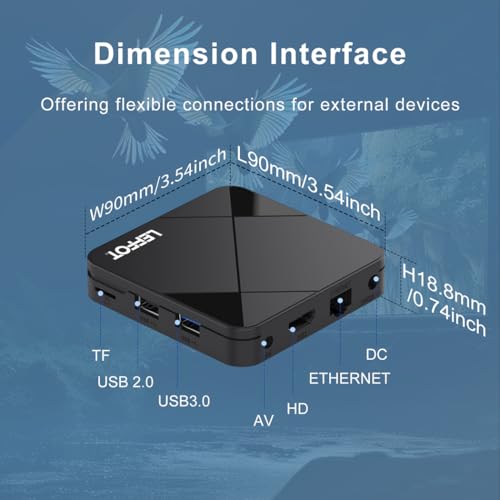
- Versatile Ports & BT 5.4: Expand connectivity via HD, USB 2.0/3.0, LAN, AV, and TF card slot (up to 64GB), plus BT 5.4 for wireless peripherals—supporting keyboards, speakers, and more to enhance your TV streaming box setup.
- Wireless Screen Mirroring: Effortlessly cast content from phones or tablets using AirPlay, DLNA, or Miracast, turning your TV box Android into a hub for presentations, photos, or videos—all without cables.
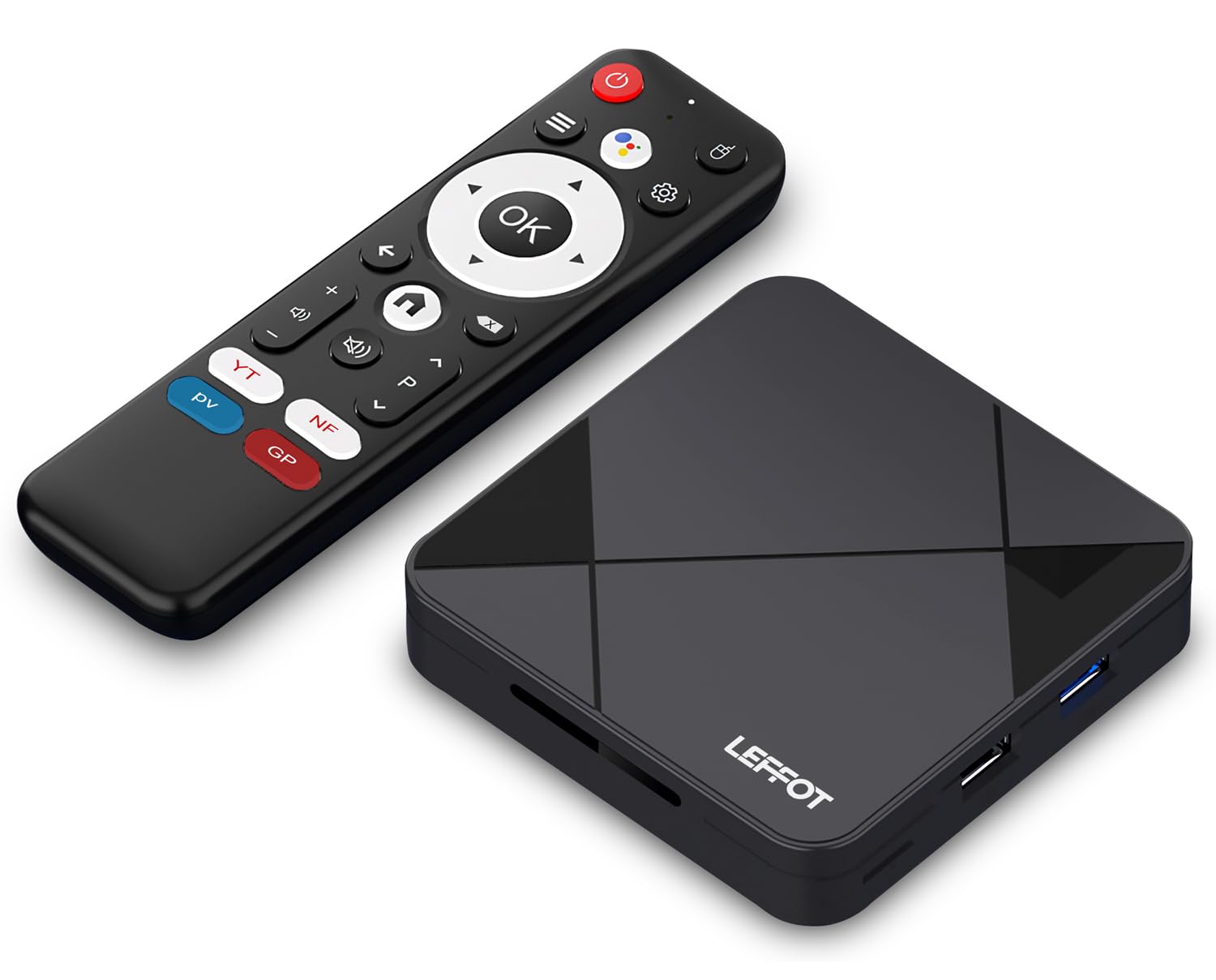
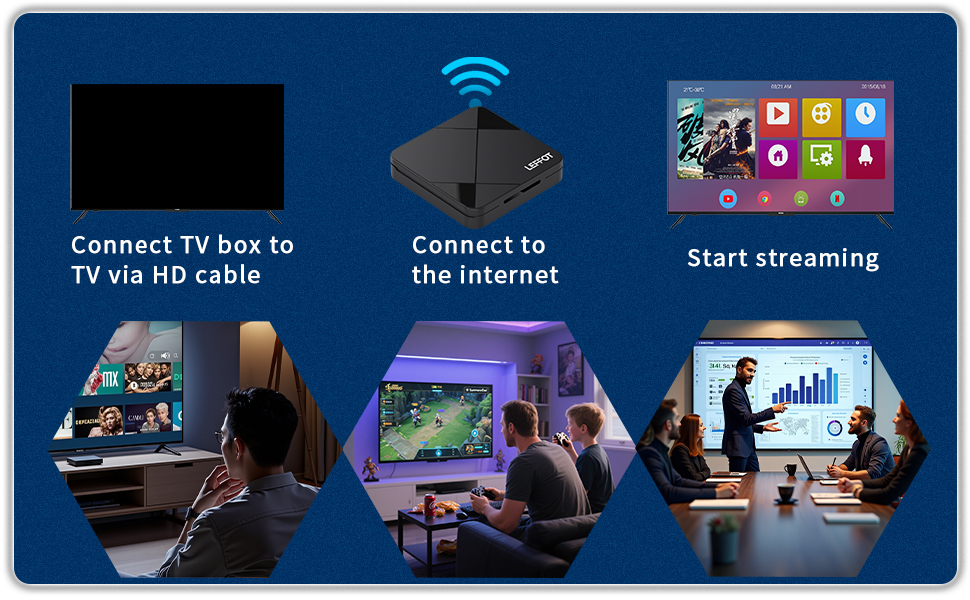
- Complete Accessories Included: Get everything ready out of the box—HD cable, BT remote, power adapter, and user manual—so you can start enjoying your smart TV box immediately.
| SKU: | B0G19VN8NL |
| Dimensions: | 9 x 9 x 1.88 cm; 92 g |
| Model: | 2GB_16GB |
| Manufacture: | Shenzhen Haochuangyi Technology Co.,Ltd |
Product Description
Warm Tips
If you encounter compatibility, application downloads, or any other issues, please let us know and we will provide you with a solution as soon as possible.
In daily use, most of the problems encountered can be fixed by first restoring the factory settings and then upgrading the system.
- Restore factory settings path: Click on “Settings” → dropdown, click on “Device Preferences” → click on “About” → click on “Restore factory settings or reset”.
- System upgrade path 1: Click on “Settings” → dropdown, click on “Device Preferences” → click on “About” → click on “System Upgrade”.
- System upgrade path 2: On the homepage, click on “More APP” to enter the “More APP” interface ->find the “FOTA Update” APP, click on this application to enter the system upgrade.
Application compatibility:
- Our TV box comes pre installed with apps such as Google Play, Netflix, Prime Video, YouTube, and more. It should be noted that these application manufacturers recommend using pre installed applications as they are already compatible with the TV box's system. Manufacturers do not recommend installing or upgrading other versions to avoid compatibility issues that may prevent the application from functioning properly.
- If upgrading these applications results in compatibility issues or inability to use them properly, you can restore the normal use of the applications by resetting them to factory settings.
- If there are compatibility issues with the product during normal use, a system upgrade can be performed to fix them.
Application installation:
- Most applications can be installed from Google Play, and it is recommended to choose the 32-bit system version or the universal version.
- Download and install the required apps, such as Disney+, through the APKPure app store.
- Download the APK file and install the application through a USB drive.
USB installation method: Download the APK format (32-bit or universal version of the application, non ZIP/RAR compressed file) application installation package to the USB drive, and download the TV version (mobile version may not be compatible with remote control operation); Format the USB drive in FAT32/exFAT format (NTFS may not be recognized); Then, open the USB drive through “Media Center” or “File Manager”, long press the APK file and select “Package Installer” to install.