Dinosoo RGB Wireless Controller for PS5, Dual Vibration
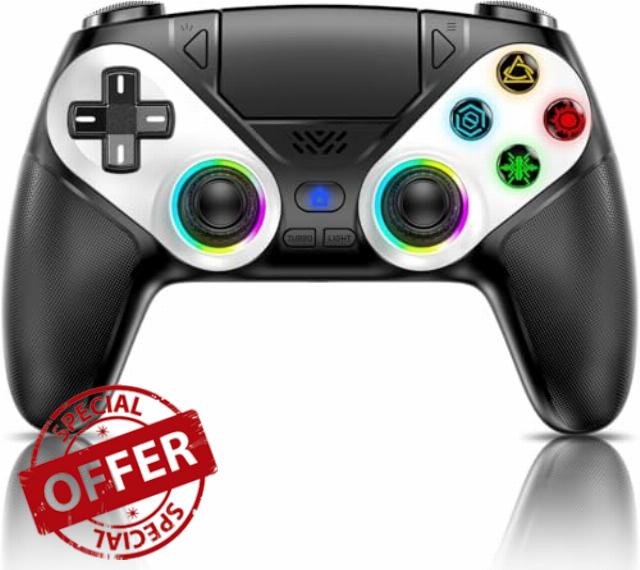
Dinosoo RGB Wireless Controller for PS5, Dual Vibration, Marco/Turbo Function, Back paddles, 3.5mm Audio Jack, 6-Axis Motion Control Gamepad with Speake
How do I update my product to restore its functionality?
Upgrade firmware Steps:Hold down the"△" button and plug it into the UsB port to connect to the PC.
Then, click the update button on your computer and wait for the automatic update to complete.
How should the controller be connected to the PS5 console for the first time? (Step 1)
Step 1: Connect the PS5 console and the controller with a USB-C data cable that comes with the package(OR PS5 original data cable ).
Please note that there must be a USB-A interface at the rear of the general PS5 console.
How should the controller be connected to the PS5 console for the first time? (Step 2)
Step 2: After the connection is completed, press the Home button on the gamepad.
If you see the light flashing slowly, it means the pairing is successful, you can use a wireless connection to the PS5 console subsequently. Video: youtu.be/lbsMpZ0jjIE
What hosts can the controller be compatible with?
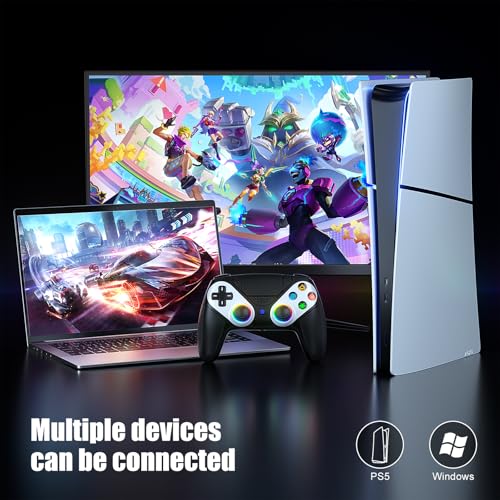
It can compatible with PS5/PS5 Pro/PS5 Slim and Windows PC, NOT For Mac, PS4 and Phone.
How to calibrate the triggers and joysticks -for joystick drift and trigger problems?
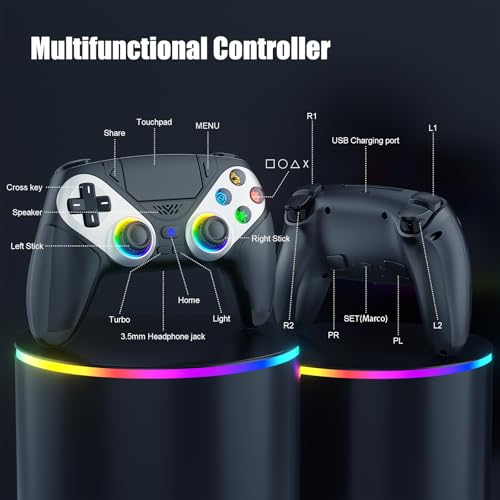
1. Enter Calibration Mode: Power off the controller(after connecting to PS5), hold Share + Menu, press Home. Wait for rapid Home button flashing.
2. Calibrate: Press triggers 3-5 times, rotate joysticks 3-5 circles, confirm with X. Done.
Wireless Controller for PS5 Back paddles Speaker
- ❗[Note] Due to PS5 system update compatibility issues, you may encounter some functional malfunctions. Don't worry—you can resolve this in just one minute by following these steps: Before connecting the wireless controller to the PS5, you must first update its firmware using a Windows PC. Download the update program here: [we.tl/t-h22KCEPWmj6tpsE1]. Watch the video tutorial here: [youtu.be/06jAORFjkf4]. Please contact the seller if you have any questions.
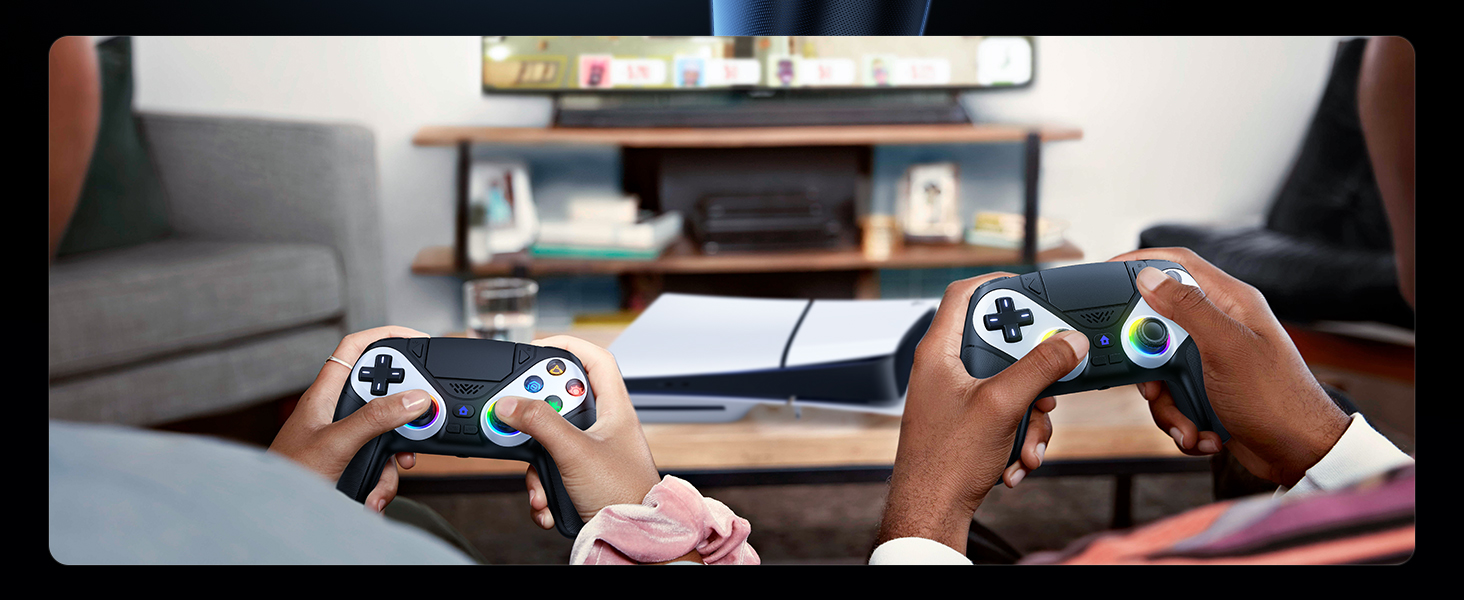
- ✅【Universal Compatibility & Easy Connection】Compatible with PlayStation 5, PC, Steam, iOS, and Android (not compatible with PS4). Initial connection is via the included USB-C cable, followed by wireless Bluetooth connectivity. Simply press the HOME button to activate your PS5 – perfect for multi-device gamers.
- ️【High-Precision Joysticks & Robust Design】Upgraded joysticks with reduced dead zones and a longer service life. Hall sensor technology prevents drift, even after 100,000+ movements. Ergonomic shape for long-lasting gaming sessions.
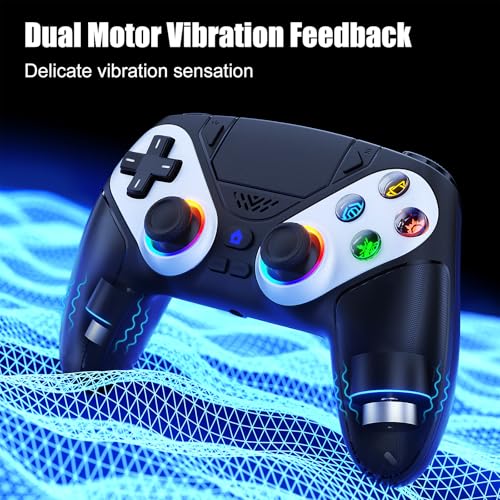
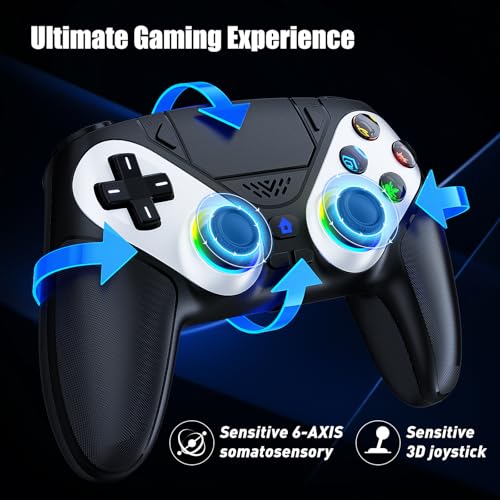
- 【Immersive Dual Vibe + 6-Axis Gyro】: Feel every explosion with dual haptic motors & aim like a pro using the 6-axis gyro. Built-in 3.5mm jack + speakers let you hear footsteps/weapon reloads up close. Ideal for FPS or story-driven games—gift it to level up any gamer’s setup!
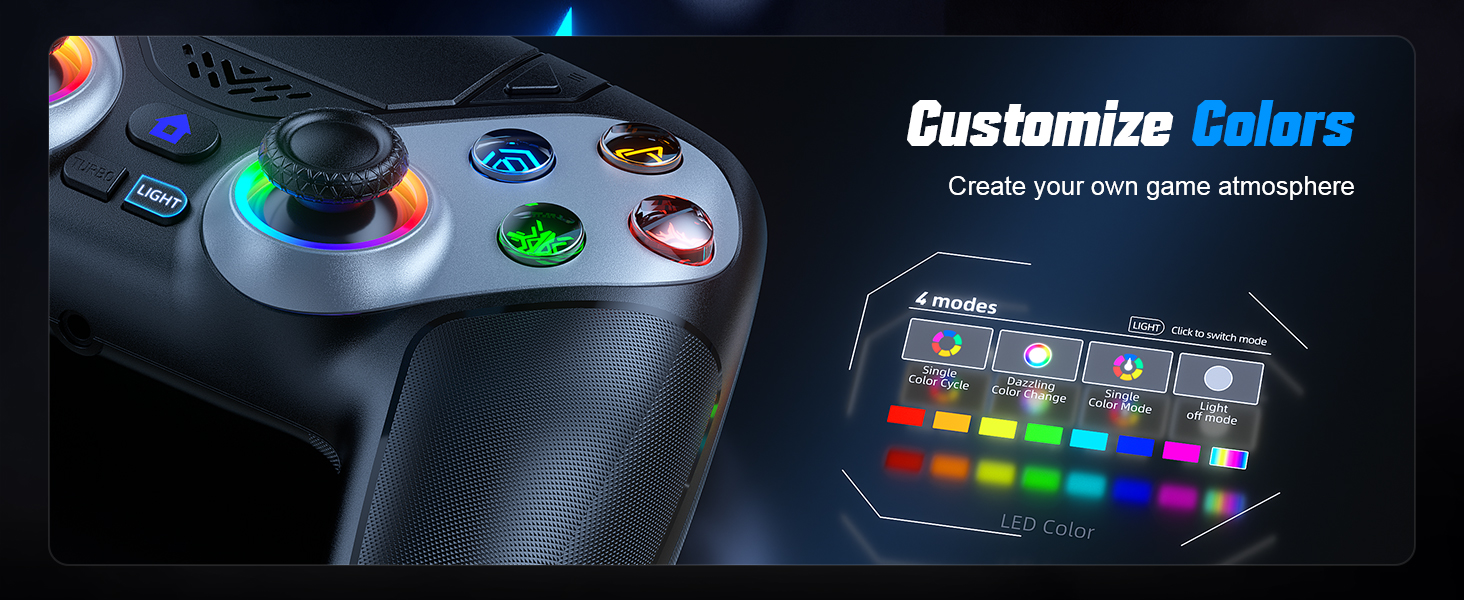
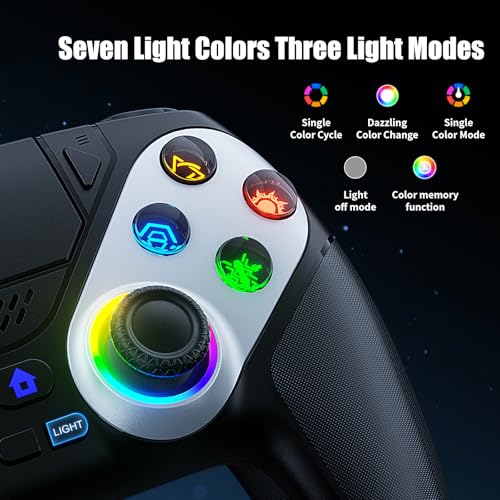
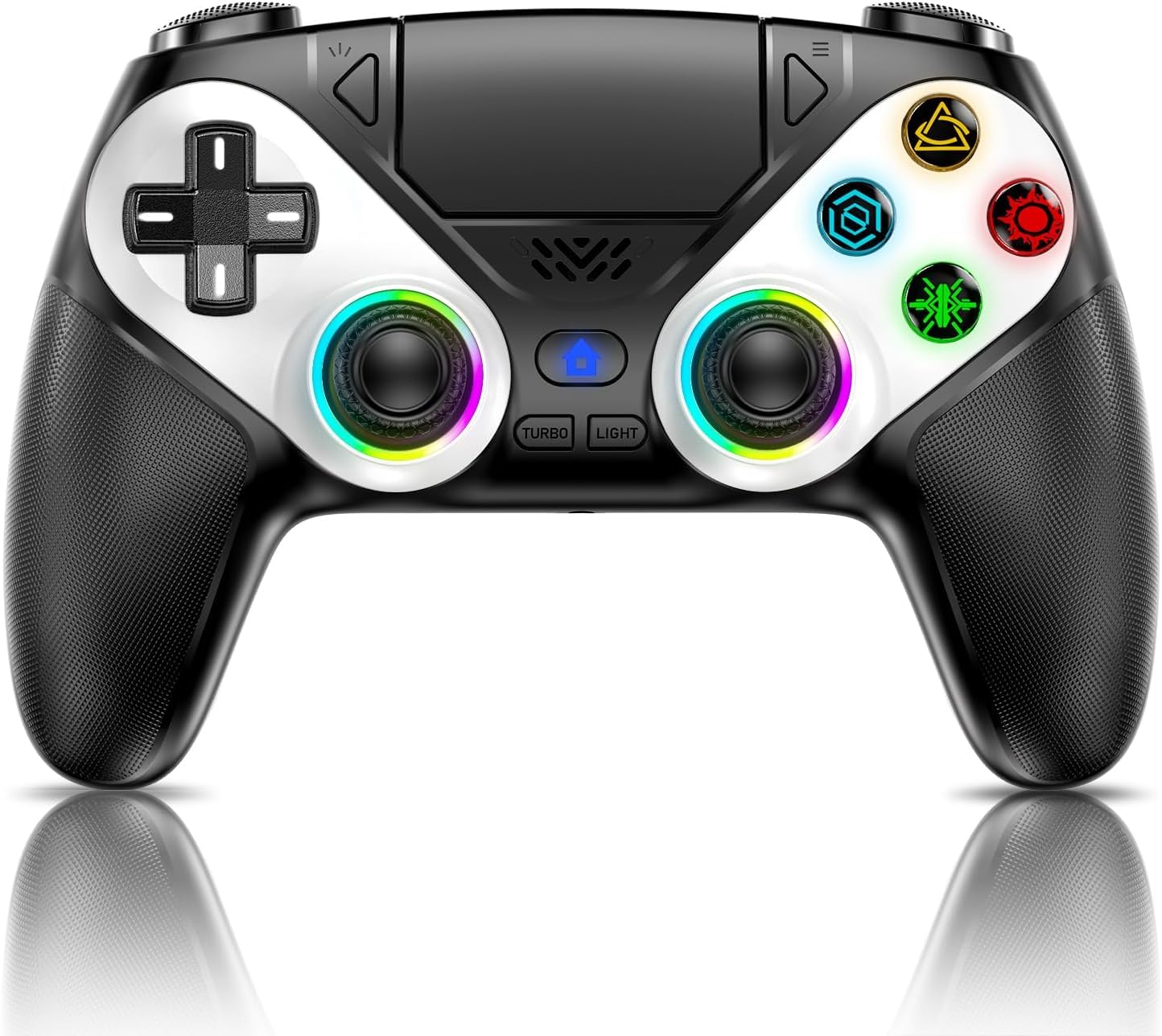
- 【7 RGB Light Modes】: Press the Lighting ( LIGHT) button,Cycle through 7 vibrant lighting effects (breathing, strobe, static) . It features a color memory function, ensuring that the next time you use it, it will still be the color you prefer.
- ✅【After-sales guarantee】If you have any questions about the controller, please feel free to contact us, we will provide you with a suitable solution immediately.
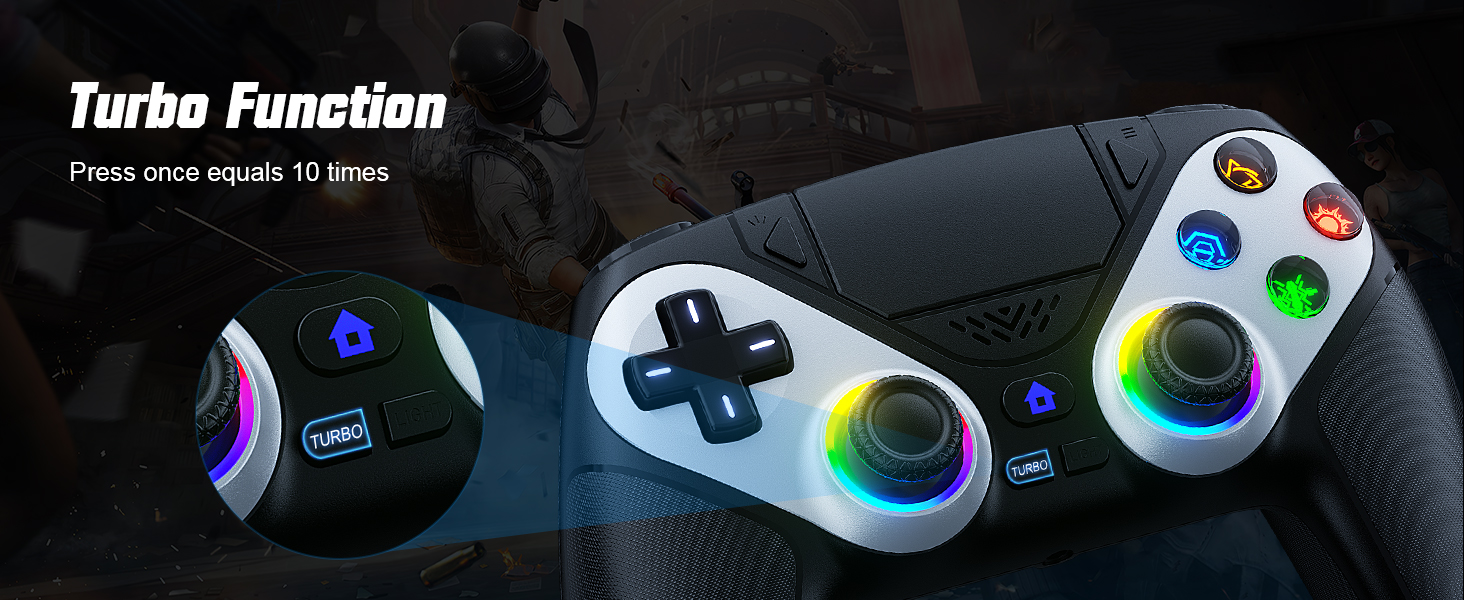
- 【Back paddles +Macro Programming + Turbo Mode】: Program complex combos (e.g., R2+Triangle+L3) to a single button for easy noob combos in GAME Turbo mode turns single taps into auto-fire—dominate GAME ’s bosses with infinite arrows. Hardcore features, beginner-friendly!

| SKU: | B0H79MX6ZN |
Product Description
How do I update my product to restore its functionality?
Upgrade firmware Steps:Hold down the”△” button and plug it into the UsB port to connect to the PC.
Then, click the update button on your computer and wait for the automatic update to complete.
How should the controller be connected to the PS5 console for the first time? (Step 1)
Step 1: Connect the PS5 console and the controller with a USB-C data cable that comes with the package(OR PS5 original data cable ).
Please note that there must be a USB-A interface at the rear of the general PS5 console.
How should the controller be connected to the PS5 console for the first time? (Step 2)
Step 2: After the connection is completed, press the Home button on the gamepad.
If you see the light flashing slowly, it means the pairing is successful, you can use a wireless connection to the PS5 console subsequently. Video: youtu.be/lbsMpZ0jjIE
What hosts can the controller be compatible with?
It can compatible with PS5/PS5 Pro/PS5 Slim and Windows PC, NOT For Mac, PS4 and Phone.
How to calibrate the triggers and joysticks -for joystick drift and trigger problems?
1. Enter Calibration Mode: Power off the controller(after connecting to PS5), hold Share + Menu, press Home. Wait for rapid Home button flashing.
2. Calibrate: Press triggers 3-5 times, rotate joysticks 3-5 circles, confirm with X. Done.
Wireless Controller for PS5 Back paddles Speaker