External SSD Enclosure Caddy for MacBook Air/Pro 12+16 PIN
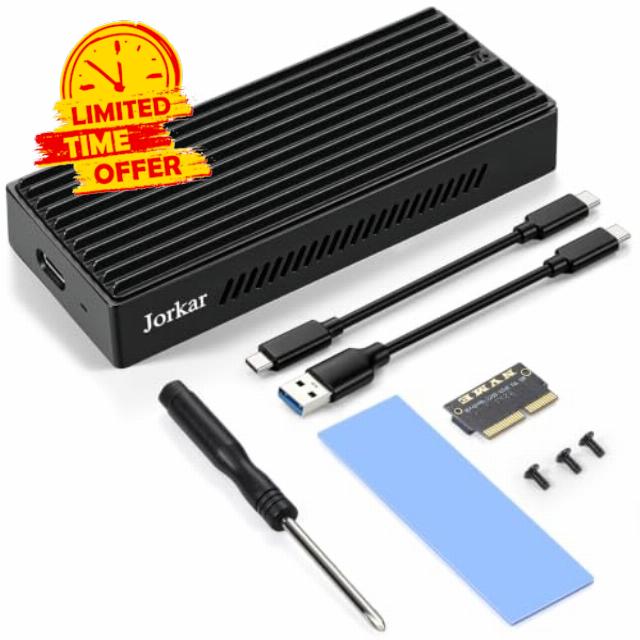
External SSD Enclosure Caddy for MacBook Air/Pro 12+16 PIN SSDs, Hard Drive Reader for A1466 A1465 A1502 A1398 Late 2013-2017 Mac SSD to USB-C 3.2 Case
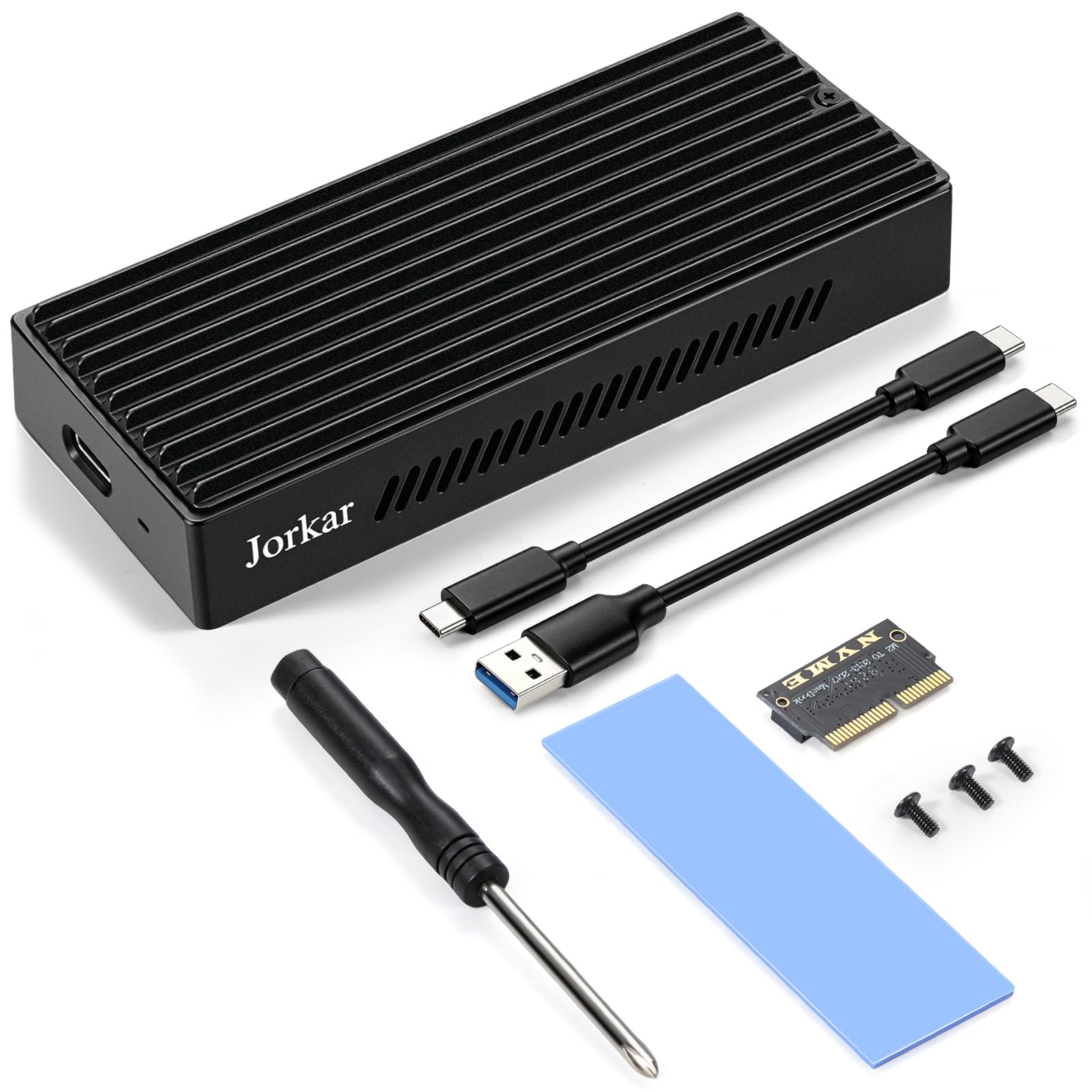
Jorkar External SSD Enclosure for Macbook 12+16 Pin with USB3.2 20Gbps
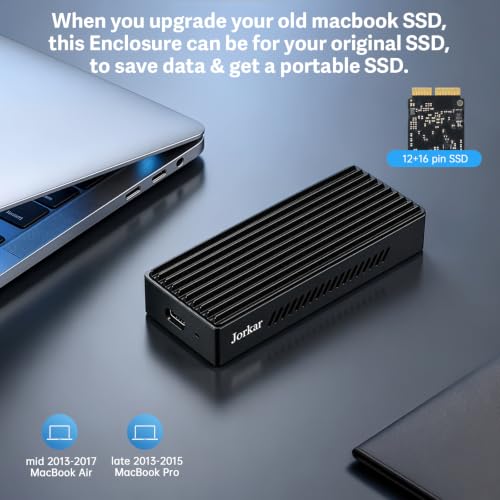
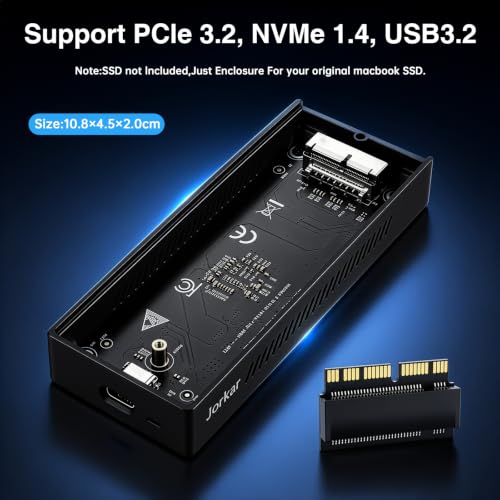
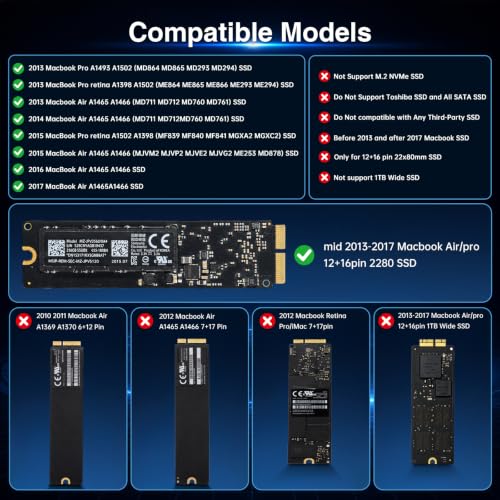
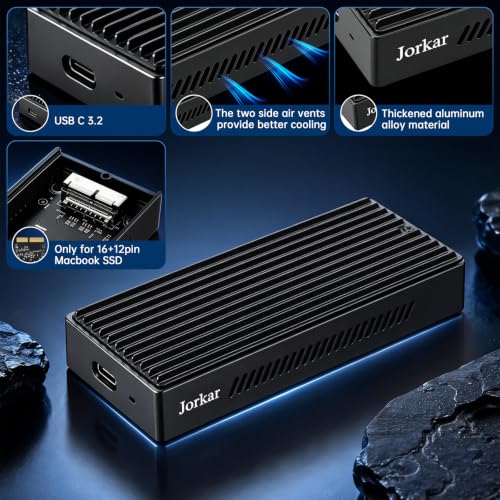
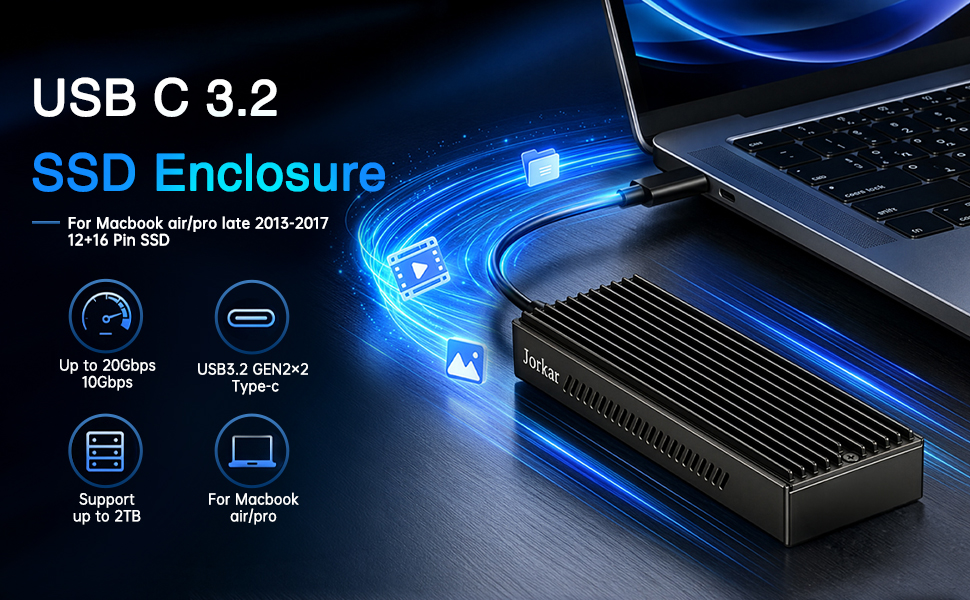
Jorkar USB C 3.2 SSD enclosure PCIe works well for Macbook PCIE SSDs with 12+16 Pins within 22*80mm, for 2013 2014 2015 2016 2017 MacBook Air A1466 A1465, for Late 2013-2015 MacBook Pro Retina A1502 1398, (Not support 1TB wide SSD). Enclosure size is 113 * 45 * 19 mm, just support SSD size within 22*80mm 12+16 Pins.
SSD not included, just enclosure. NOT compatible with all SATA SSDs, or third-party SSDs.
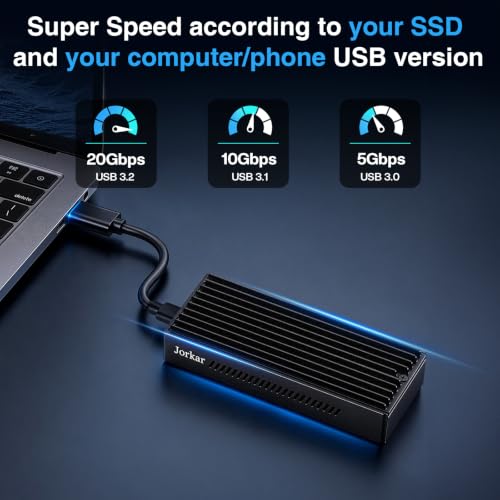
*Faster Data Transmission, Jorkar USB C 3.2 SSD enclosure Support up to 20Gbps transmission speed with USB 3.2 Gen2 interface if your SSD & the computer Both supports 20Gbps, Or just 10Gbps, 5Gbps according to your ssd and your computer.
*When macbook ssd connected to a Thunder bolt 3 or USB 3.1 Gen 2 port, both the read and write speeds can reach up to 900 MB/s.
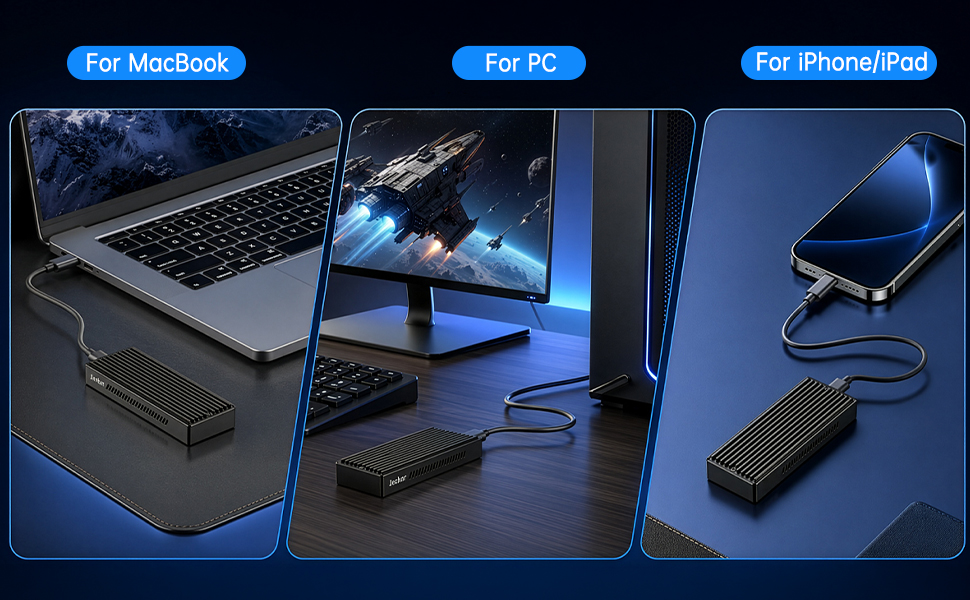
*Compatible with a variety of operating systems, support for Windows 7/8/10 and for MacOS 10, 10.5 above operating systems. Not support Android system.
*DO NOT Support NVMe Protocol; DO NOT Support Mac SSD with Built-in Heat System; DO NOT Suport latest macOS Sonoma.
Why can't the hard disk (SSD) be displayed on the computer?
1. It is compatible with MacOS, generally the hard drive will pop up on desktop. On Windows OS, hard disk will not available on "This PC" or "My computer", please find your hard disk in "Disk Management".
2. Please confirm whether the hard disk is displayed in Disk Management/Disk Utility.
a. Windows operating system: Right-click "This PC" and select "Manage" to enter "Disk Management".
b. Mac operating system: enter "Disk Utility" in the desktop search bar and press enter.
3. If SSD is brand new, you need to format and initialize it to EXFAT. (Format will delete all your files)
For Windows operating systems, perform the following steps:
a. Right-click this pc and go to Administration > Disk Management > Initialize Disk.
b. Right-click the unallocated space and click "New Simple Volume". Click "Next" several times according to the prompt,and then click Finish.
For Mac operating systems, perform the following steps:
a. After connecting it to the external box, a prompt will appear. Right-click Initialize to start.
b. Right-click "Erase" and a window will pop up.
c. Right-click "Erase" in the pop-up window to complete SSD initialization.
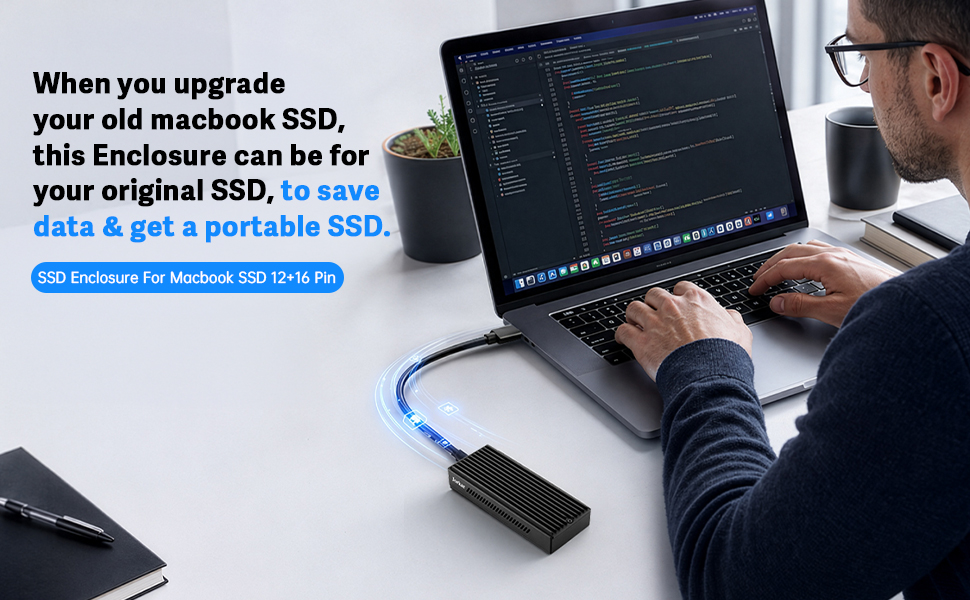
Jorkar External SSD Enclosure, New Life for old Macbook SSD
Q: My Mac SSD is a Toshiba brand. Can I use this enclosure?
A: No. This product only supports Appl genuine 12+16 PIN SSDs (with prriority support for Samsun genuine SSDs). It explicitly does NOT support Toshiba 12+16 PIN SSDs, any SATA SSDs, or third-party SSDs. Please check your SSD brand before purchasing.
Q: I have a 2015 MacBook Pro Retina 15" with a Samsung 1TB SSD. Why isn't it recognized?
A: Some 2015 MacBook Pro Retina 15" units with Samsung 1TB SSDs havecompatibility limitations. We recommend checking the exact SSD model via Mac "About This Mac>System Report> Storage," to verify compatibility.
Q: Can I use this enclosure with a Mac Pro SSD that has a heatsink?
A: Not recommended. This enclosure is not designed for Mac Pro SSDs withheatsinks. Removing the heatsink will damage the SSD's original condition, and proper recognition after installation cannot be guaranteed.
Q: Can I connect my S24 Ultra Android phone to this enclosure?
A: No. This product only supports Mac (2013-2017 models) and Windows computers. It is not compatible with Android systems, and Android devices will not recognize it.
Q: I'm using a 2023 MacBook Pro, and the connection keeps dropping. What should I do?
A: Try switching to a USB-A 3.0 port (using a USB-C to A adapter if needed). When connected to USB-C 3.2 ports on some newer computers, power delivery or thermal issues may cause instability. Switching ports can improve stability.
Usage & Failure QA (High Frequency: Disconnectirng, Not Recognized, Overheating, Formatting Failure)
Q: The SSD is not recognized when connected to my computer. What should I do?
A: Follow these steps:
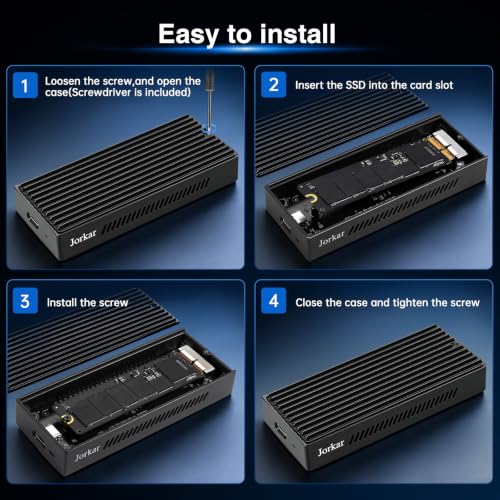
1 Make sure the SSD is fully inserted into the PCB slotand the screw is tightened (loose screws cause poor contact).
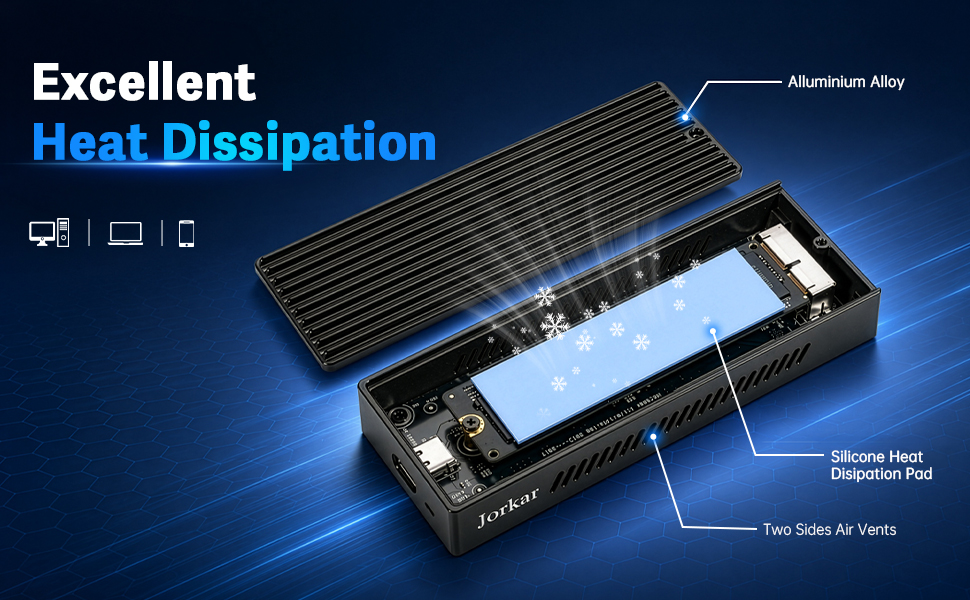
2 Check that the thermal pad is properly applied to prevent overheating-related recogniticon failure.
3 Try a different USB-C cable (preferably the included one) to rule out power issues.
4 On Windows, open Disk Management to initialize the disk; on Mac, check the SSD status via Disk Utility.
5 If it's still not recognized, verify SSD compatibility.
Q: The connection keeps dropping, especially when transferring large files. How can I fix this?
A: The main causes are poor heat dissipation or excessive load. Solutions:
1 Make sure the PCB is back in the enclosure, screws are tightened, and the thermal pad is properly applied (critical for cooling).
2 Transfer large files irbatches (no more than 20GB at a time) to avoid excessive load.
3 On Mac, disable "Put hard disks to sleep when possible" under both "Battery" and "Power Adapter" settings.
4 Switch to a USB-A 3.0 port to reduce power and thermal strain.
5 If drops persist, check your computer's USBport for adequate power delivery, or use a powered USB hub.
Q: The enclosure gets abnormally hot (too hot to touch). Will this damage my devices?
A: Yes, it can affect the lifespan of both the SSD and the enclosure, and may/cause disconnections. Disconnect immediately and check:
1 Is the thermal pad properly contacting both the SSD and the PCB? 2 Are the screws tightened (to ensure proper thermal transfer through the enclosure)? 3 Avoid prolonged continuous use; let it cool down between sessions. 4 For large file transfers, use an auxiliary cooling stand.
Q: On Windows, the drive doesn't show up in "This PC." How do I fix that?
A: This product requires manual initialization and formatting on Windows. Steps:
1 Open "This PC> Manage> Disk Management." 2 Locate the unallocated disk (your SSD), right-click, and select "Initialize Disk." Choosethe partition style (MBR/GPT). 3 After initialization, right-click and select"New Simple Volume" to partition and format (NTFS recommended). 4 The drive will then appear in "This PC."
Q: On Mac, Disk Utility crashes when I try to format the SSD. What should I do?
A: Try switching to a USB-A 3.0 port (using an adapter) and format in smaller steps. If it still crashes, verify SSD compatibility or restart your Mac and try again.
Q: The indicator light is off, and the computer doesn't recognize the drive. What's wrong?
A: This is most likely a power delivery issue or a defective unit. Troubleshooting steps: 1 Try the included USB-C cable and connect directly to your computer's native USB-C port (avoid low-quality hubs). 2 Check that thePCB and SSD are making good contact and the screw is tightened. 3 If there's still no response, (possible product defect).
Jorkar Portable SSD Enclosure, Easy Installation
Q: I'm using this enclosure to clone my Mac SSD,bout the process keeps crashing. What should I do?
A: Cloning puts a high load on the drive, which can cause overheating anddisconnections. Suggestions:
1 Properly apply the thermal pad and tighten screws to ensure adequate cooling.
2 Clone files in smaller batches insteadof all at once.
3 Switch to a USB-A 3.0 port for better stability.
4 If crashes persist, verify SSD compatibility or try a different cloning tool.
Q: Why does the connect suddenly break during the use of macbook ssd enclosure?
A: 1, First make sure macbook ssd is installed properly, better tighten the screws to make sure it won't be disconnected suddenly.
2, deselect “Put hard disks to sleep when possible” in both Battery and and Power Adapter.
Q: Why can't I identify/copy files on my mobile phone/computer?
1. Please check whether the file format of SSD is compatible with the system.
a. Windows/Android: compatible file formats are NTFS and EXFAT.
MAC OS /IOS: compatible file formats are APFS and EXFAT.
b. If an incompatible format is used, please connect to the computer to back up the data, reinitialize and select a compatible file format.
2. When using a mobile phone, it is recommended to use a hard disk with power consumption less than 4.5W.
Attention:
1. Please make sure your SSD is from the following models: for MacBook Air 2013-2017 / Pro Retina 2013 2014 2015 built-in SSD (NOT for MacBook 2010 2011 2012 SSDs, and NVMe protocol SSDs are not applicable.)
2. The front USB interface of some Appl desktops and Appl notebooks have insufficient power supply (weak current), so some customers said that their PC can't recognize the SSD, or are unstable, easy to disconnect, or prompt an error. In this case, please buy a docking station or a USB Hub to solve the problem.
3. Do not move the hard drive case during use, and prevent collision with the hard drive. Do not squeeze the product with external force.
4. Non-professionals should not disassemble the product or repair it.
5. When disconnecting this external hard drive, you should exit safely. If the hard drive data is accidentally lost, we are not responsible to restore any data.
6. For Mac OS PC, the hard drive should be formatted with exFAT.
7. Your internal SSD needs to be re-partitioned for normal storage and copying, otherwise it may appear unrecognizable.
8. If high transmission speed is required, please plug it into a computer equipped with USB3.0 interface.
- Jorkar USB-C 3.2 SSD enclosure works for Mac SSDs with 12+16 Pins, mid 2013-2017 MacBook Air A1466 A1465, Late 2013-2015 Macbook pro A1398 A1502 (Not support 1TB wide SSD). Enclosure size is 113*45*19mm, just support SSD size within 22*80mm 12+16 Pins.
- SSD not included, just enclosure. NOT compatible with all SATA SSDs, or third-party SSDs. The SSD should be formatted first if you want to use it on Windows OS.On Windows OS, hard disk will not available on "This PC"/ "My computer", please find your drive from "Disk Management".
- Jorkar USB C 3.2 SSD enclosure Support up to 20Gbps transmission speed with USB 3.2 Gen2X2 interface if your SSD & the computer Both supports 20Gbps. Or just 10Gbps, 5Gbps according to your ssd and your computer.
- Jorkar 12+16 Pin SSD enclosure is sturdy and portable, with aluminum alloy case for quicker heat dissipation. To prevent it from being disconnected from your Mac or PC, we advise you to deselect “Put hard disks to sleep when possible” both in Battery and Power Adapter.
- Important, If you meet "Disk Not Ejected Properly" problem, Please try to Right-click "pop-up" for the disk ssd, then unplug the USB cable, and then plug it in again to copy the files.
- Some USB interface of Appl desktops and notebooks have insufficient power supply, so it can't recognize the SSD Enclosure, or easy to disconnect, you can buy a docking station or a USB Hub to solve it.
| SKU: | B0HG968GPM |
| Weight: | 108 Grams |
| Brand: | Jorkar |
| Manufacture: | Jorkar |
Product Description
Attention:
1. Please make sure your SSD is from the following models: for MacBook Air 2013-2017 / Pro Retina 2013 2014 2015 built-in SSD (NOT for MacBook 2010 2011 2012 SSDs, and NVMe protocol SSDs are not applicable.)
2. The front USB interface of some Appl desktops and Appl notebooks have insufficient power supply (weak current), so some customers said that their PC can’t recognize the SSD, or are unstable, easy to disconnect, or prompt an error. In this case, please buy a docking station or a USB Hub to solve the problem.
3. Do not move the hard drive case during use, and prevent collision with the hard drive. Do not squeeze the product with external force.
4. Non-professionals should not disassemble the product or repair it.
5. When disconnecting this external hard drive, you should exit safely. If the hard drive data is accidentally lost, we are not responsible to restore any data.
6. For Mac OS PC, the hard drive should be formatted with exFAT.
7. Your internal SSD needs to be re-partitioned for normal storage and copying, otherwise it may appear unrecognizable.
8. If high transmission speed is required, please plug it into a computer equipped with USB3.0 interface.