HDMI to USB-C AR Glasses Adapter, 4K@60Hz 2K@120Hz HDR, HDMI
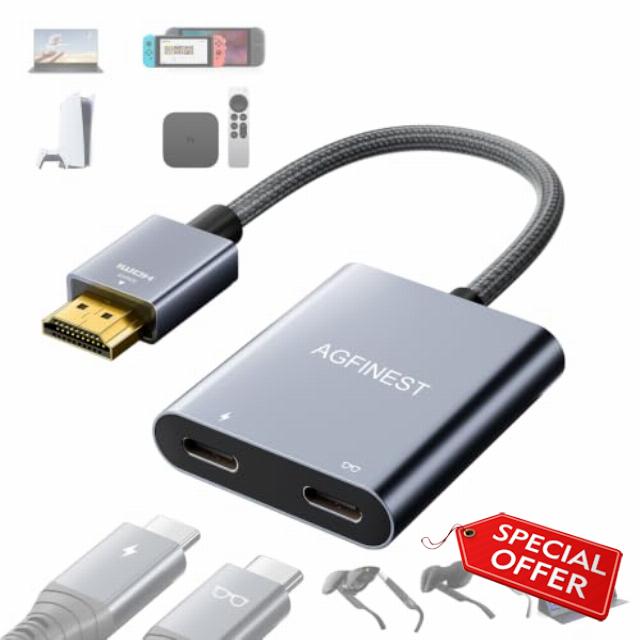
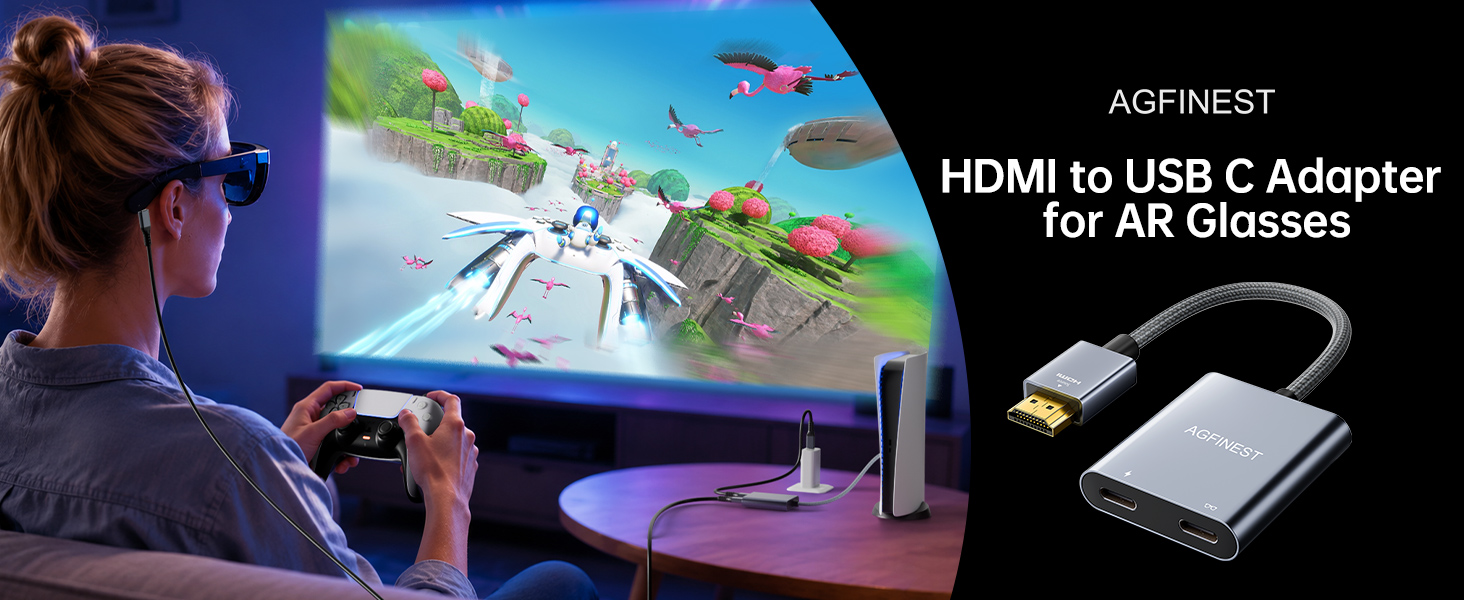
HDMI to USB-C AR Glasses Adapter, 4K@60Hz 2K@120Hz HDR, HDMI Source to USB-C Display for PS5, Xbox, Switch, Laptop to XREAL Rokid VITURE RayNeo, Braided Cable, Alu. Alloy, Power Cable Included
Why does my monitor show “No signal”?
Check:
Direction: HDMI source → USB-C display only (reverse not supported)
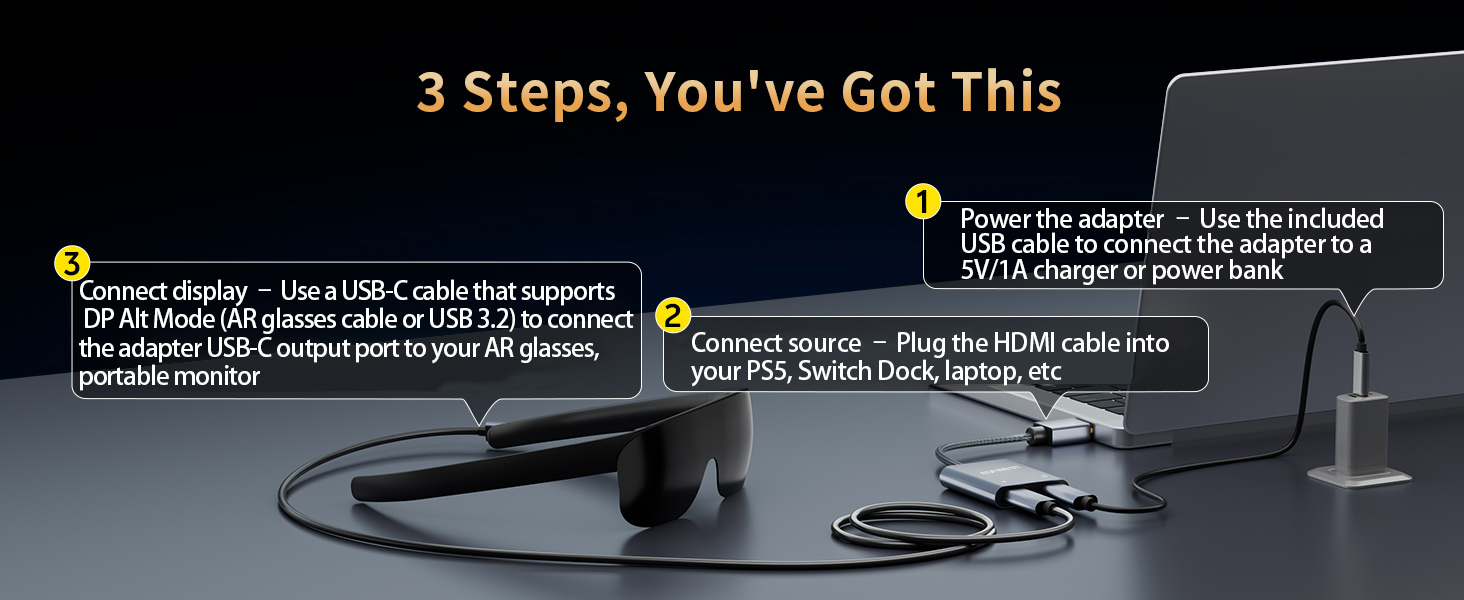
Power: connect a 5V external power supply
Cable: use a full-feature USB-C video cable (DP Alt Mode). Charging-only cables will not work
Does this adapter support touchscreen on portable monitors?
Touch support requires a USB 3.0+ data cable with bidirectional data transfer from display to source device (e.g. laptop), plus external power.
Can this adapter power portable monitors?
No. Output is approx. 5W, suitable for AR glasses only. Portable monitors require a separate power supply of 15W or higher via their own charger.
Why do PS5 or Xbox show a black screen?
Usually caused by HDCP. Connect the console to a TV first, go to Settings > System > HDMI, disable HDCP, set resolution to 1080p, then reconnect the adapter.
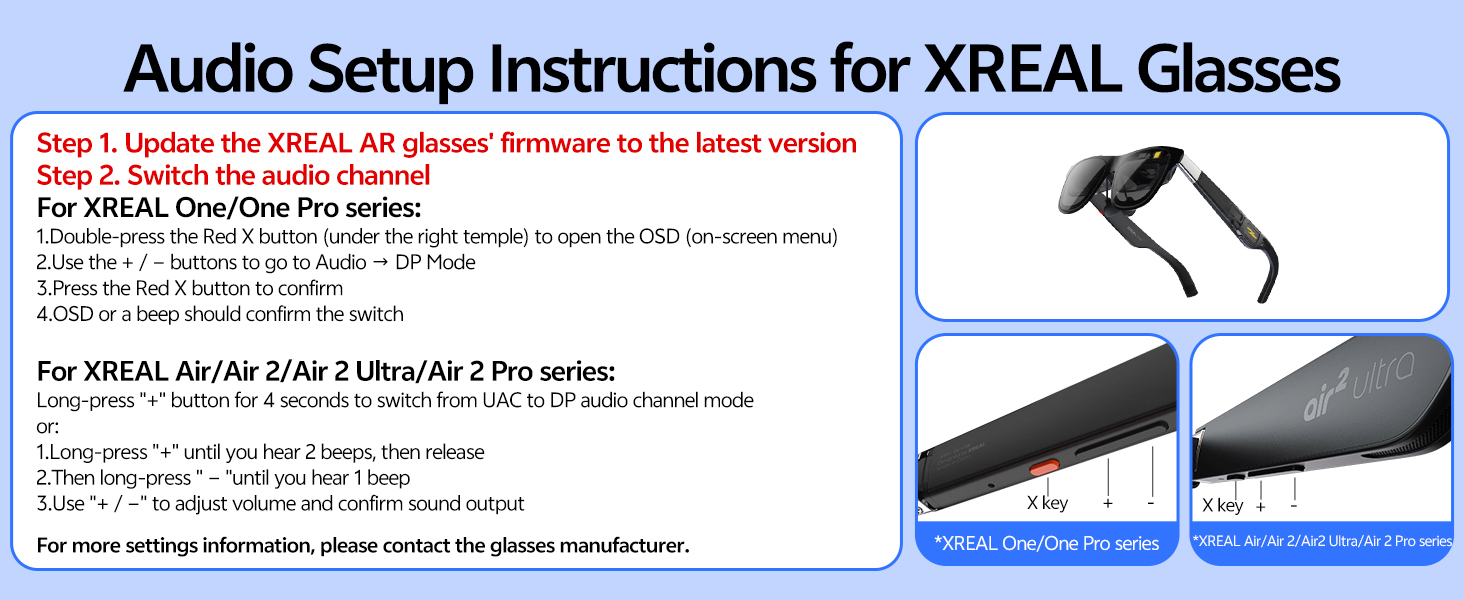
Why is there no sound on my AR glasses?
AR glasses often default to USB audio instead of HDMI audio.
XREAL: hold “Brightness +” for 4–6 seconds until a beep to switch audio mode
Other brands: check manufacturer settings for HDMI/DP audio mode
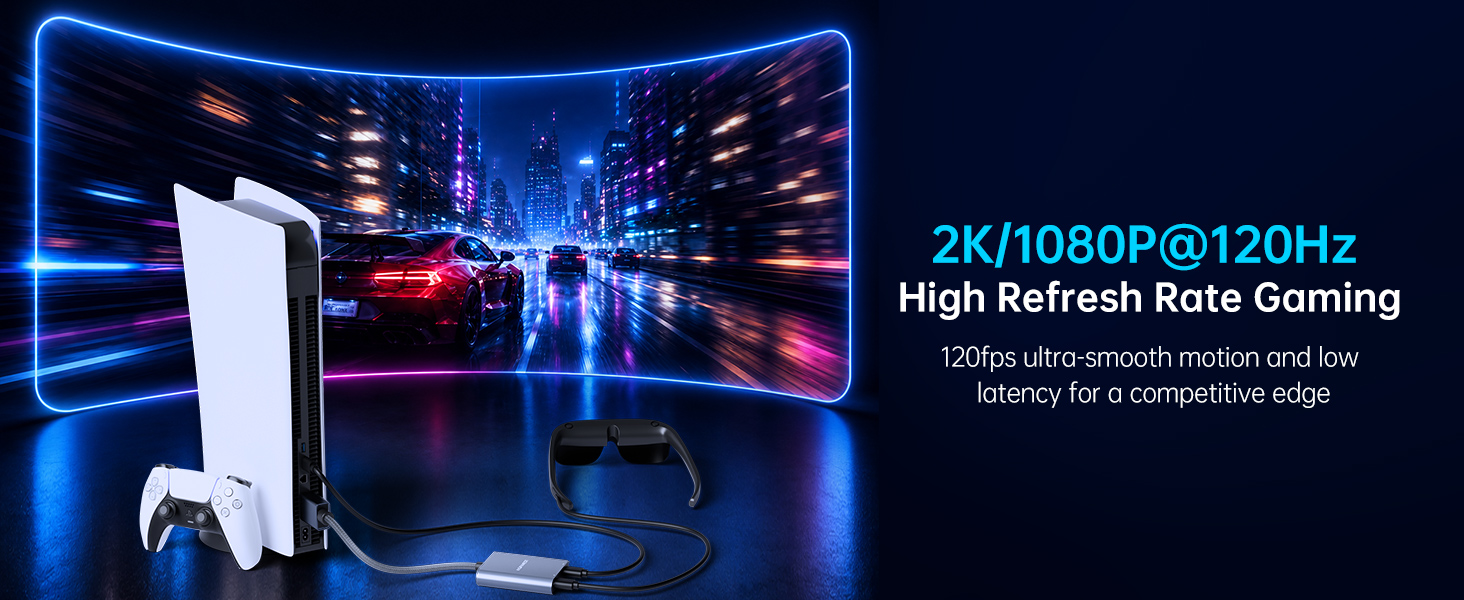
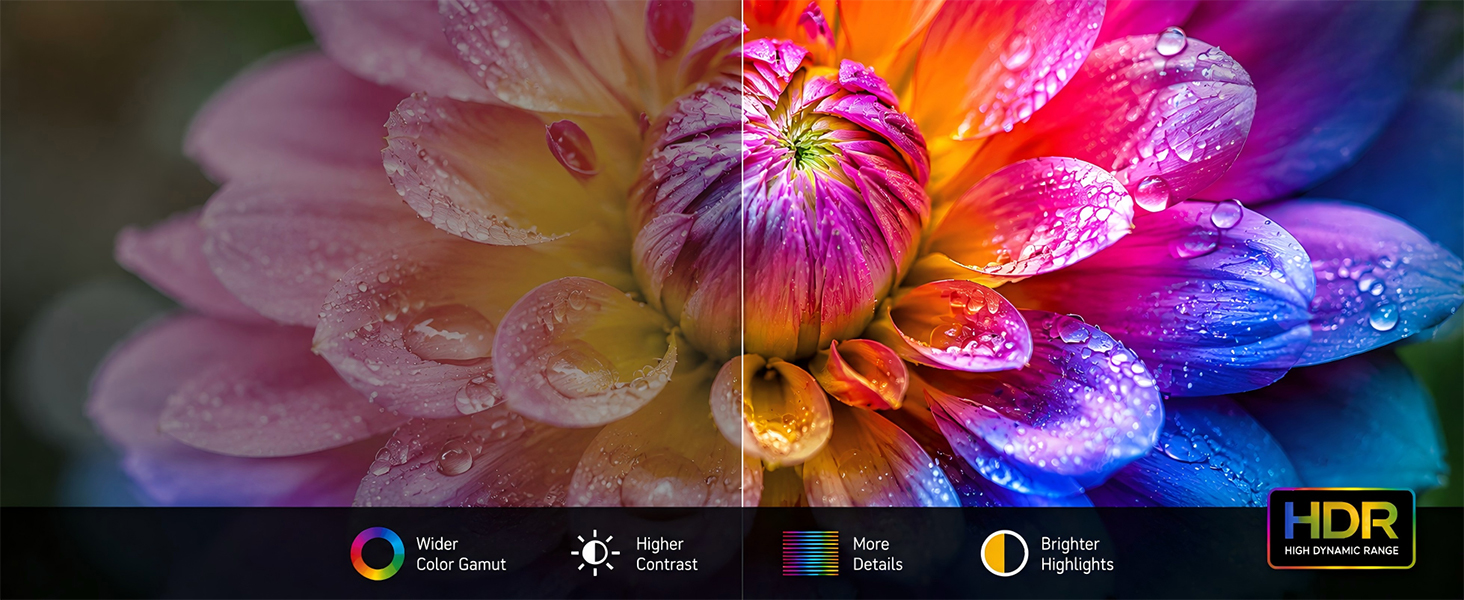
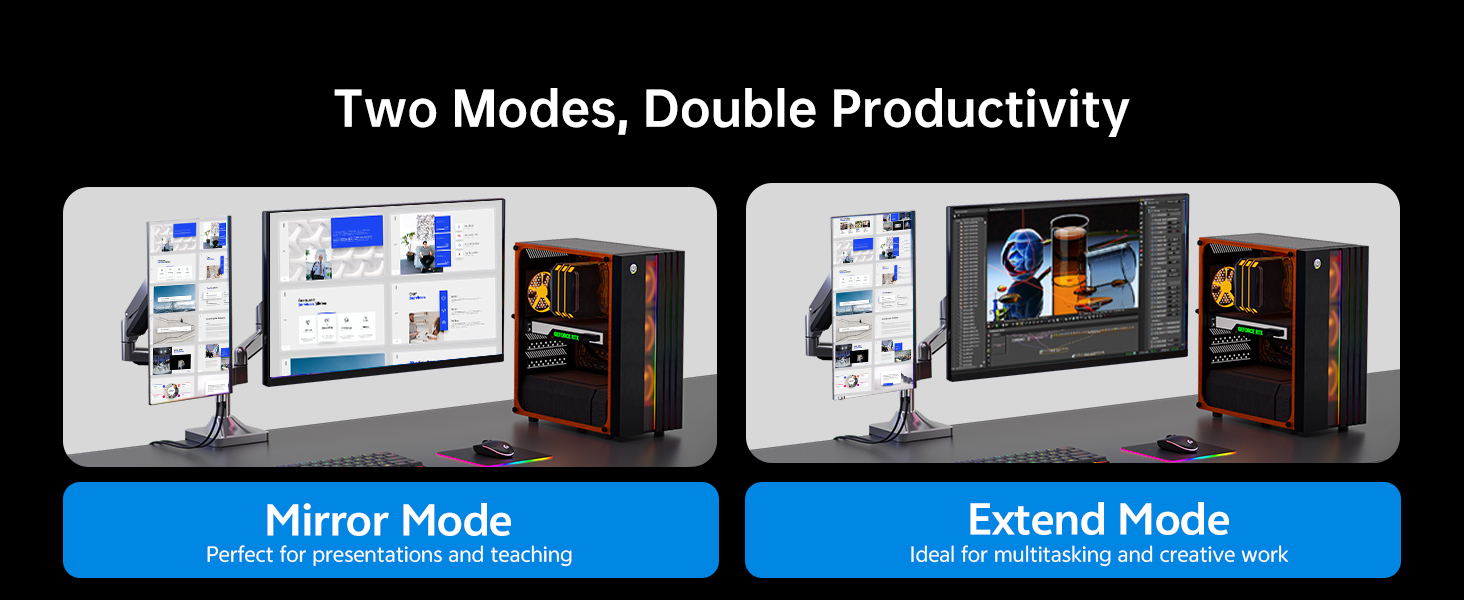
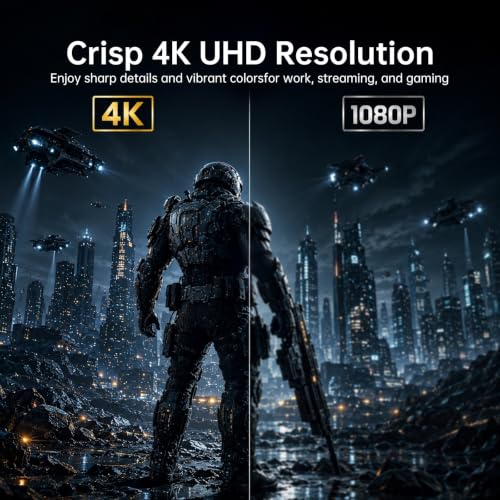
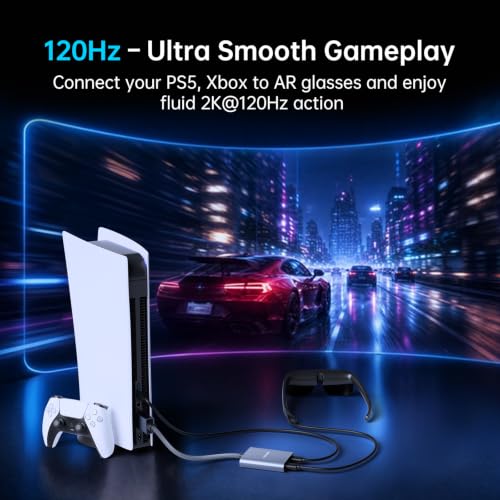
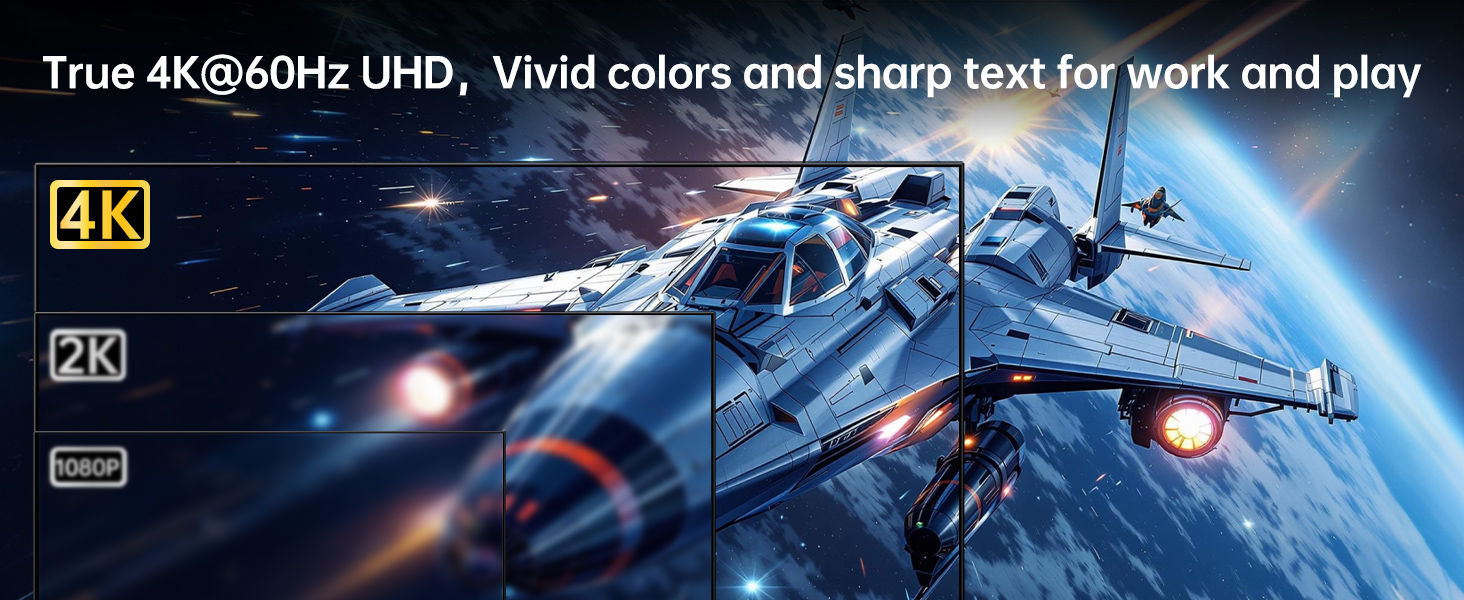
- 4K@60Hz, 2K/1080P@120Hz Performance: Enjoy sharp 4K@60Hz video for movies, streaming and productivity, or smooth 2K@120Hz and 1080P@120Hz performance for gaming and fast-moving content. Dynamic HDR helps improve colour, contrast and image depth. Also supports mirror mode and extend mode. Actual resolution and refresh rate depend on the source device, display device and content support
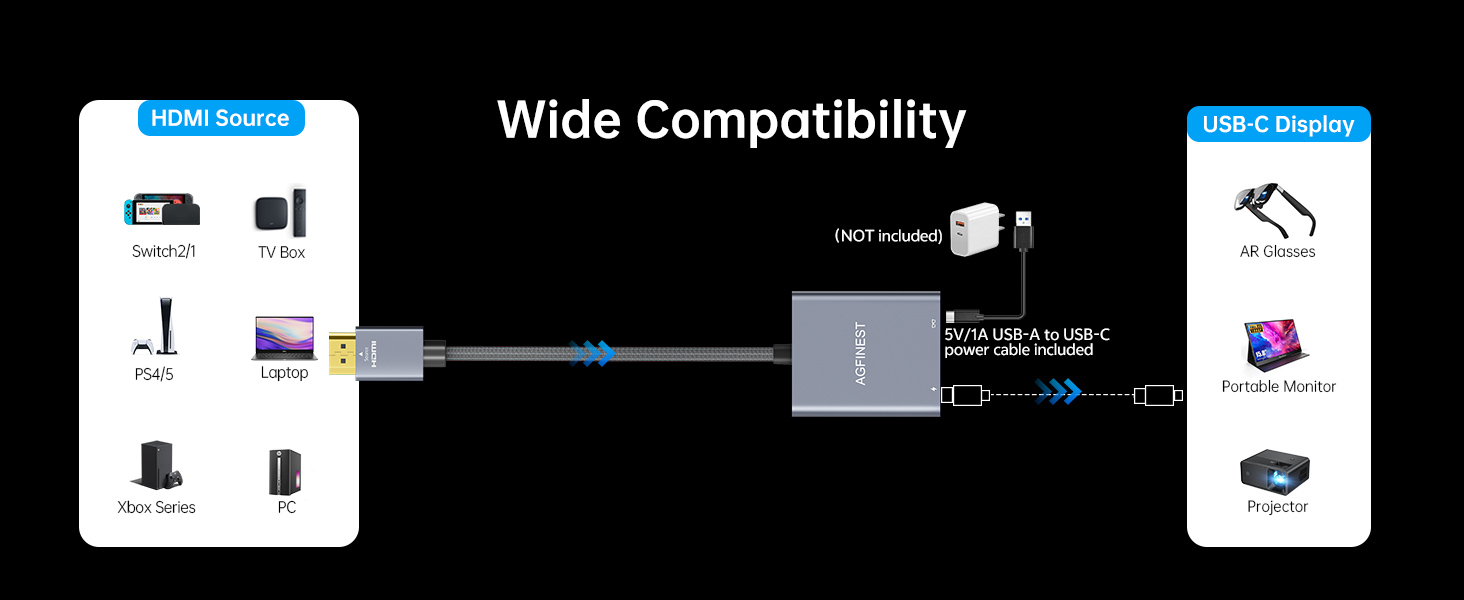
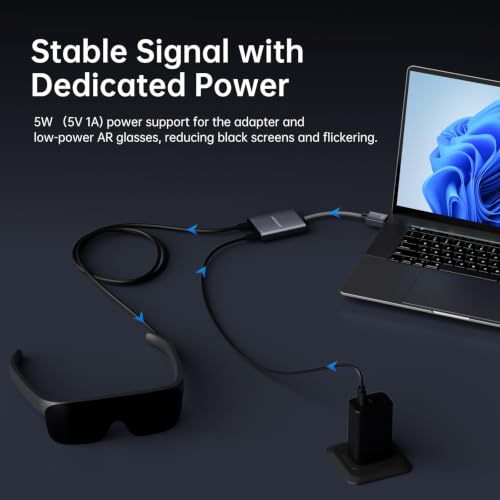
- 5V/1A Powered Design For More Stable Use: The 5V/1A power input helps keep the adapter chip running stably and can also provide power to compatible AR glasses during use. For portable monitors or other higher-power displays, separate power is required. Includes a 1m USB power cable; USB charger adapter not included
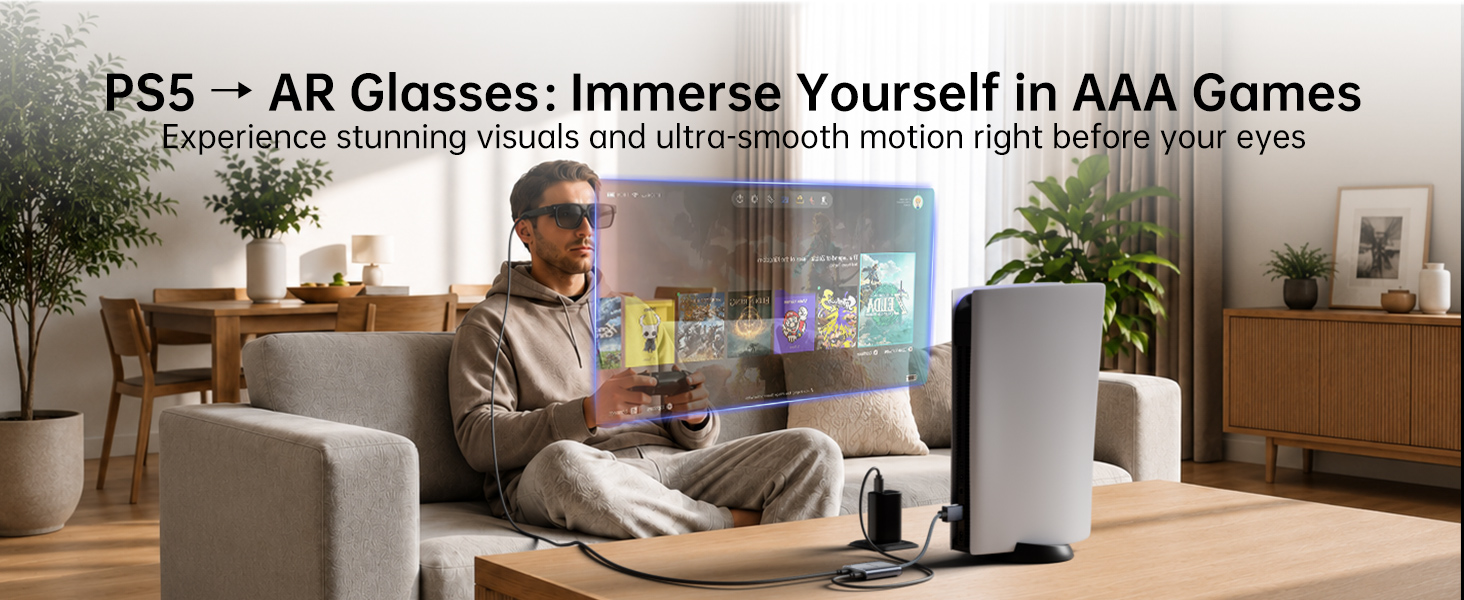
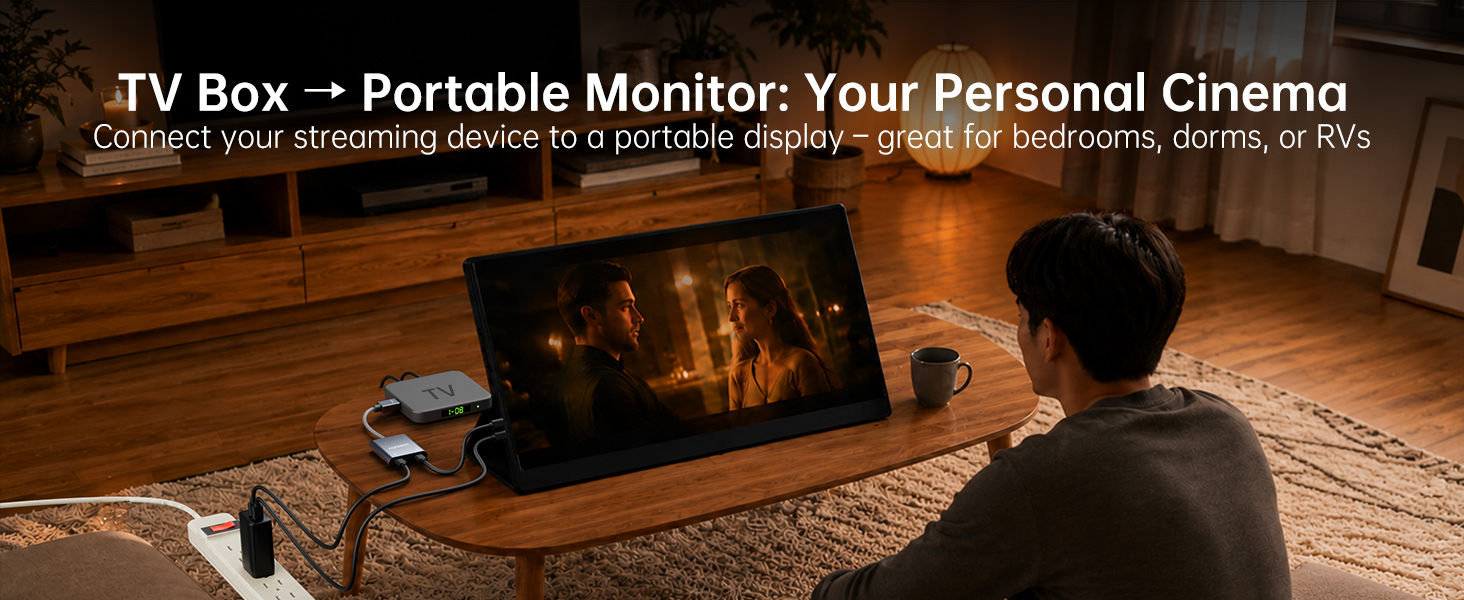
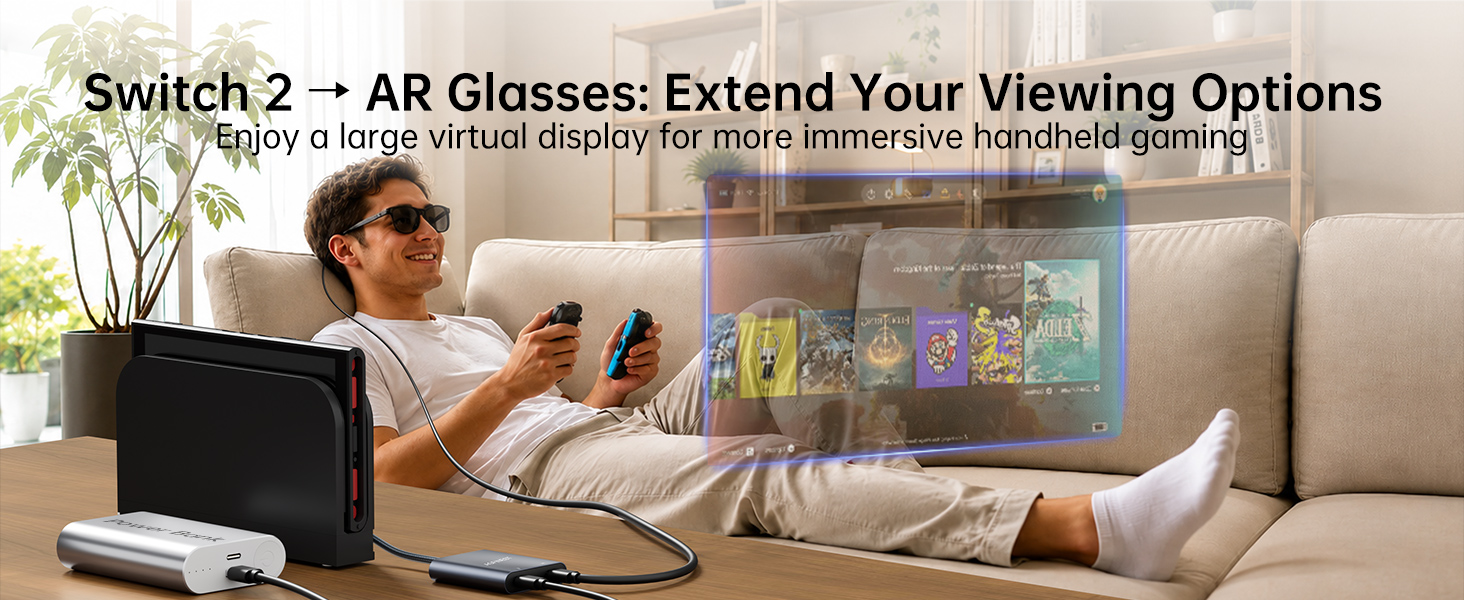
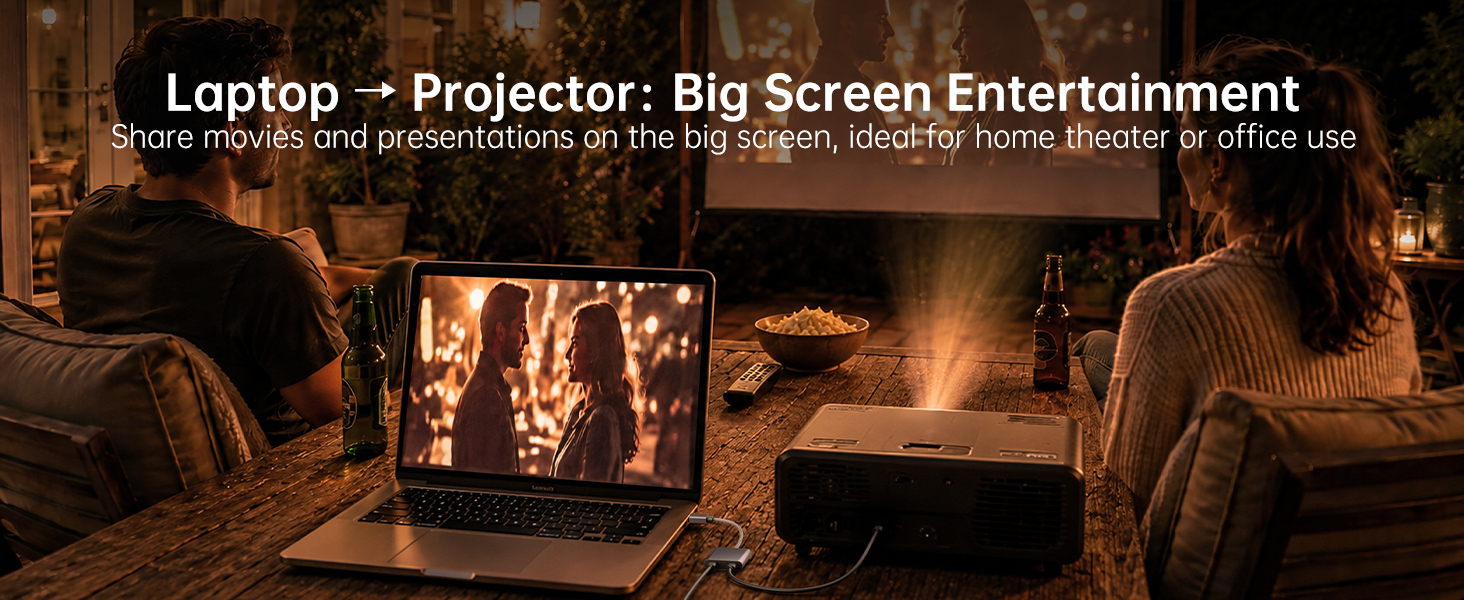
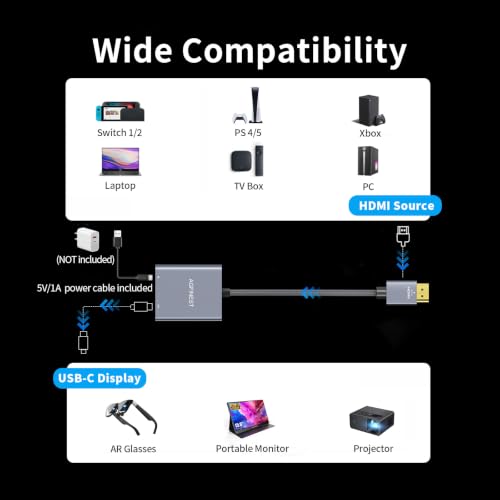
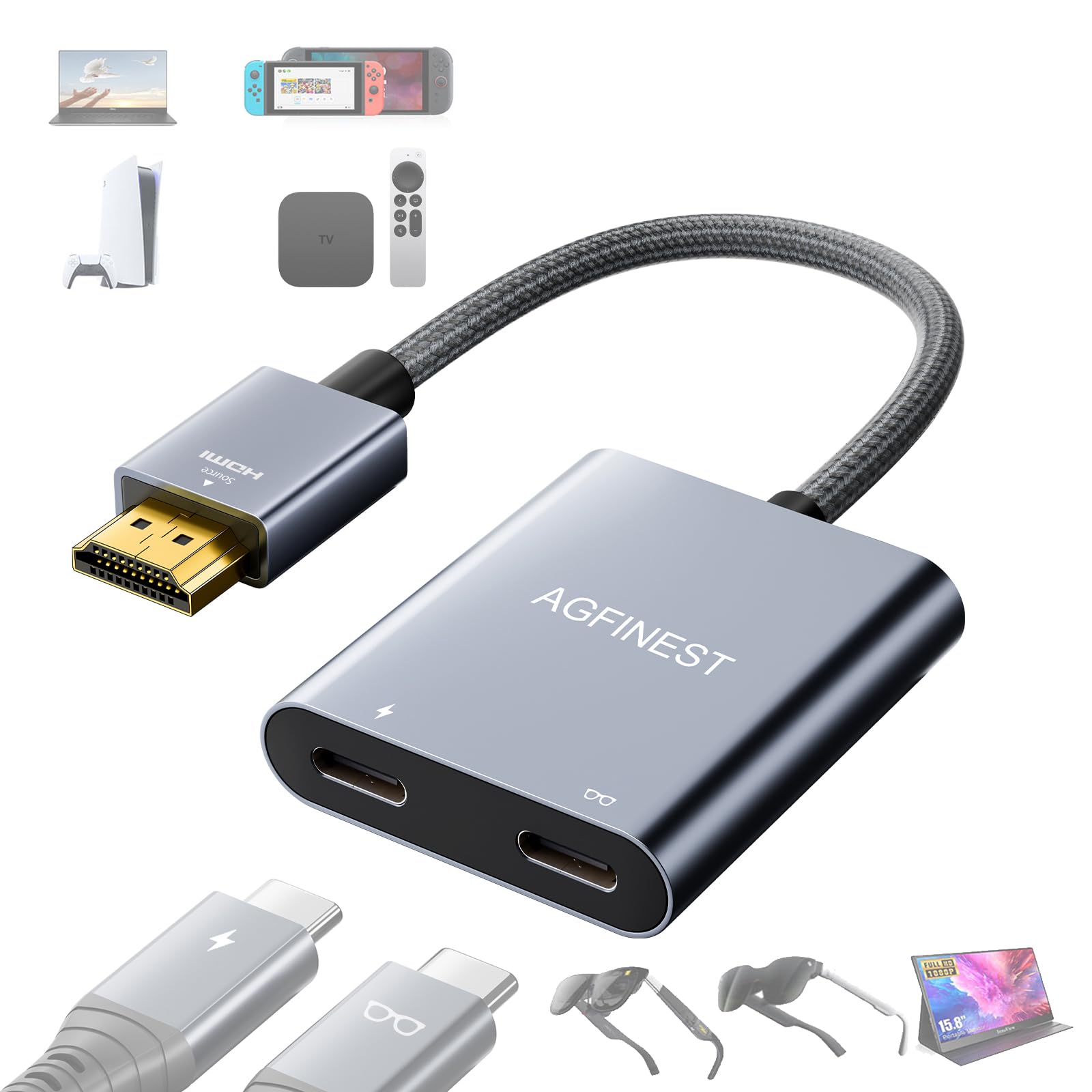
- Wide Compatibility For AR Glasses And HDMI Devices: AGFINEST HDMI To USB-C Adapter connects HDMI source devices such as PS5, PS4, Xbox Series X|S, Nintendo Switch Dock, Steam Deck Dock, Fire TV Cube, Laptops, PCs and TV Boxes to supported USB-C displays. Works With XREAL, Rokid, VITURE, RayNeo and compatible portable monitors for gaming, Streaming, work and travel. NOTE: NOT compatible with Viture Beast
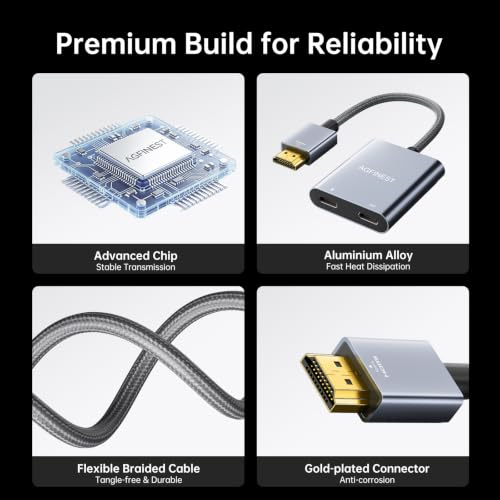
- Premium Braided Cable And Aluminium Alloy Build: Built with a flexible braided cable that resists bending, tangling and daily wear. The aluminium alloy shell helps with heat dissipation for more stable long-session use, while gold-plated connectors support reliable signal transfer and corrosion resistance. Compact and lightweight to carry
- Compatibility Notice – Please Read Before Use: No driver needed, simply plug and use. External 5V power is required for operation. Compatibility may vary across different devices. One-way use only: HDMI to USB-C, not reversible. For the best result, please follow the correct connection method and use supported devices. For any compatibility assistance, contact the AGFINEST support team

| SKU: | B0H29698FH |
| Weight: | 28 Grams |
| Brand: | AGFINEST |
| Colour: | grey |
| Manufacture: | AGFINEST |
| Colour: | grey |
Product Description
Why does my monitor show “No signal”?
Check:
Direction: HDMI source → USB-C display only (reverse not supported)
Power: connect a 5V external power supply
Cable: use a full-feature USB-C video cable (DP Alt Mode). Charging-only cables will not work
Does this adapter support touchscreen on portable monitors?
Touch support requires a USB 3.0+ data cable with bidirectional data transfer from display to source device (e.g. laptop), plus external power.
Can this adapter power portable monitors?
No. Output is approx. 5W, suitable for AR glasses only. Portable monitors require a separate power supply of 15W or higher via their own charger.
Why do PS5 or Xbox show a black screen?
Usually caused by HDCP. Connect the console to a TV first, go to Settings > System > HDMI, disable HDCP, set resolution to 1080p, then reconnect the adapter.
Why is there no sound on my AR glasses?
AR glasses often default to USB audio instead of HDMI audio.
XREAL: hold “Brightness +” for 4–6 seconds until a beep to switch audio mode
Other brands: check manufacturer settings for HDMI/DP audio mode