FPD Frameo Digital Photo Frame 10.1 Inch WiFi Photo Frame
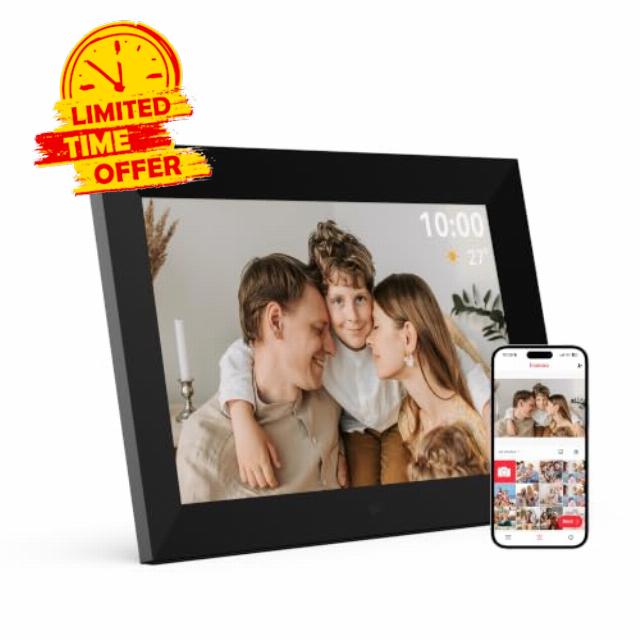
FPD Frameo Digital Photo Frame 10.1 Inch WiFi Photo Frame, HD IPS Touch Screen, Clock & Weather Auto Rotate, Slideshow, 32GB Memory 128GB Expansion, Calendar Sync, Remote Photo Sharing (Black)
How to transfer photos remotely ?
1: Connect the frame to Wi-Fi. 2: Open the Frameo app. 3:Scan the on-screen code or enter the pairing code. 4: Select photos/videos. 5: Tap “Send” to transfer
Is there an extra fee to send photos/videos ?
No. You can send up to 10 photos and 1 video of 15 sec per transfer at no extra cost. Frameo+ can be enabled as needed to send up to 100 photos and 1 video of 2 min per transfer.
How many photos can the frame store ? Can it display photos without Wi-Fi ?
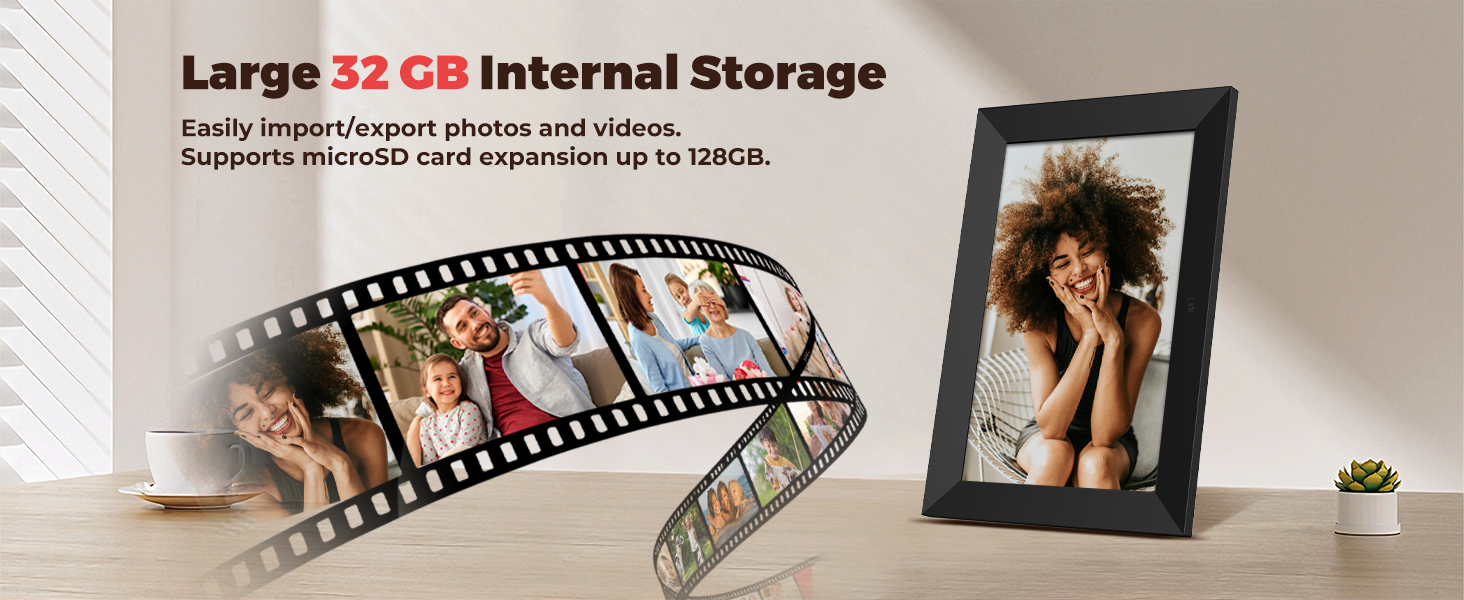
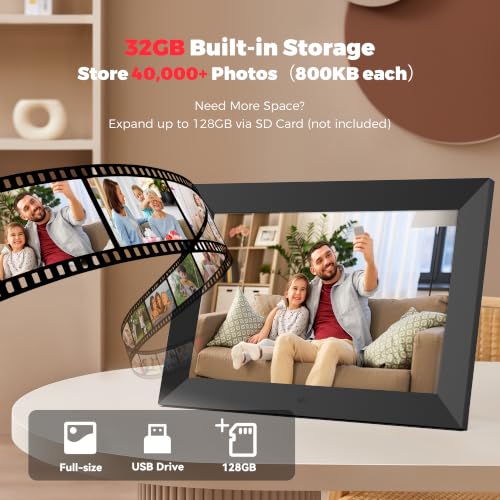
With 32GB built-in storage, the frame can store about 40,000 photos based on 800KB each. Photos are stored locally, so they can be viewed normally without an internet connection.
How to Import via Micro SD Card ?
1.Insert the Micro SD card into the port on the back of the frame.
2.Go to Settings > Manage Photos > Import photos.
3.Select the photos/videos from the Micro SD card and import them.
How to Import via Computer ?
1. Connect the frame to your computer with a USB-A to USB-C cable.
2. Go to Settings > Manage Photos > Transfer from Computer and turn it on.
3. Open the frame folder on your computer and drag photos/videos into it.
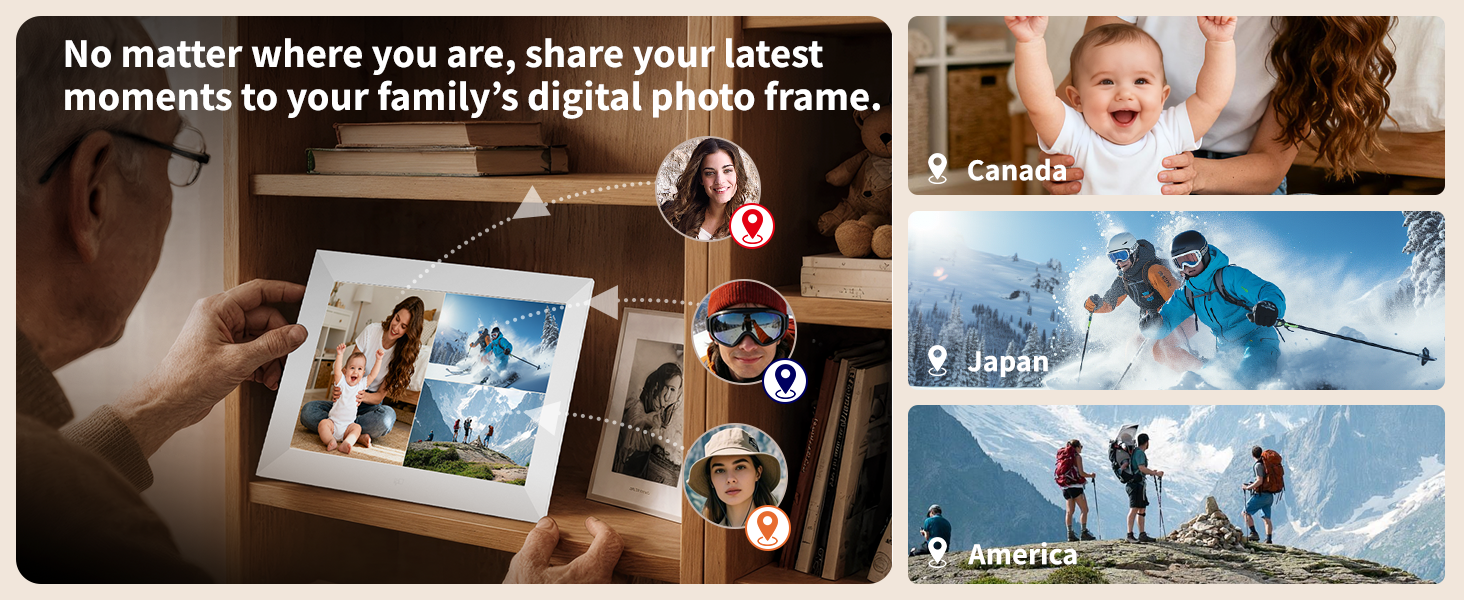
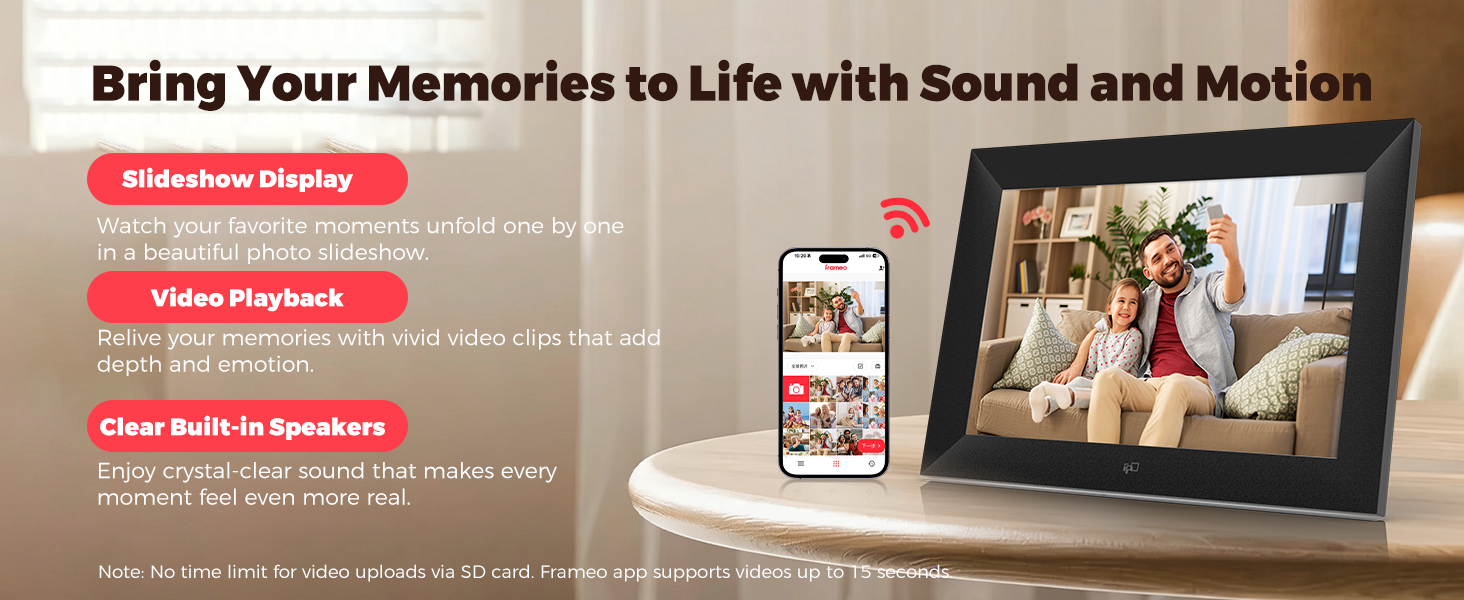
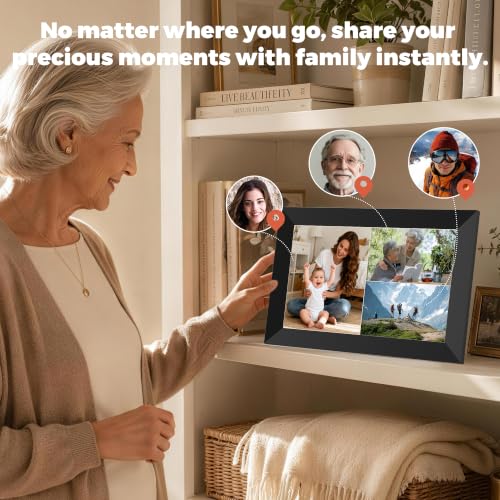
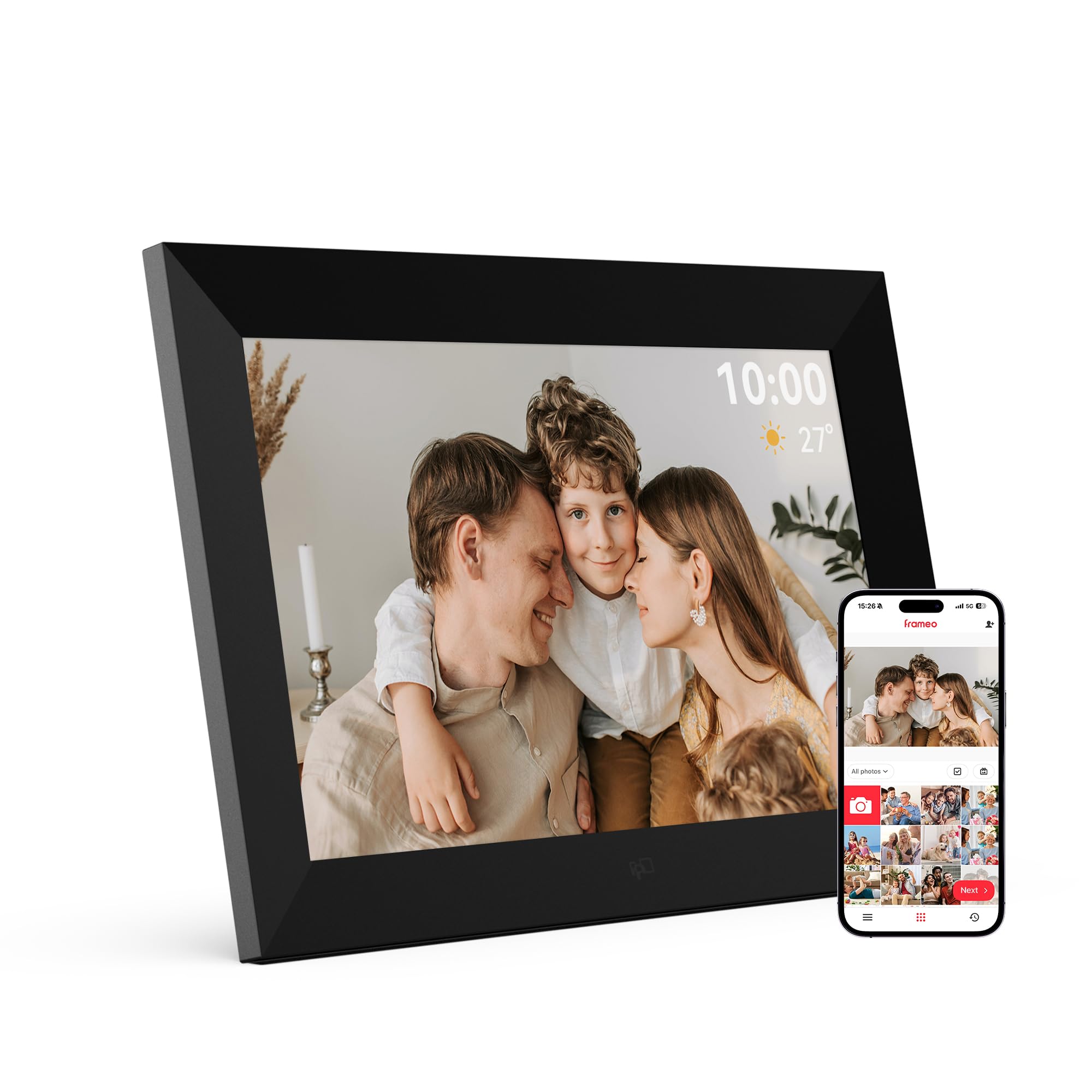
- 【Share Joy Instantly】Turn your digital frame into a family hub. Using the free Frameo app, invite loved ones to share photos and videos (up to 15 sec) directly via Wi-Fi. Moments appear in seconds, creating a living bridge of love for grandparents, parents, and everyone—no matter the distance
- 【Massive Storage for Precious Memories】With 32GB built-in storage and expandability up to 128GB via MicroSD card, this digital picture frame stores up to 40,000 photos (800kb each). Load photos directly via SD card or USB-C cable for unlimited offline viewing—a permanent, worry-free digital photo album
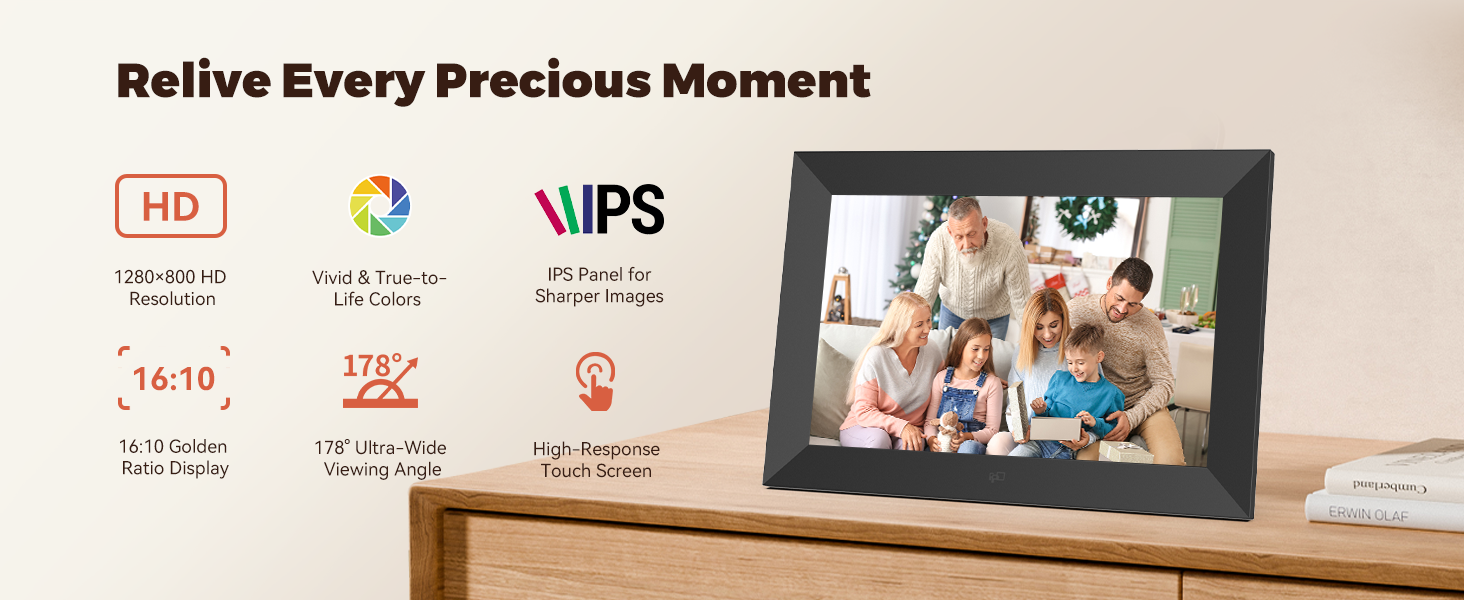
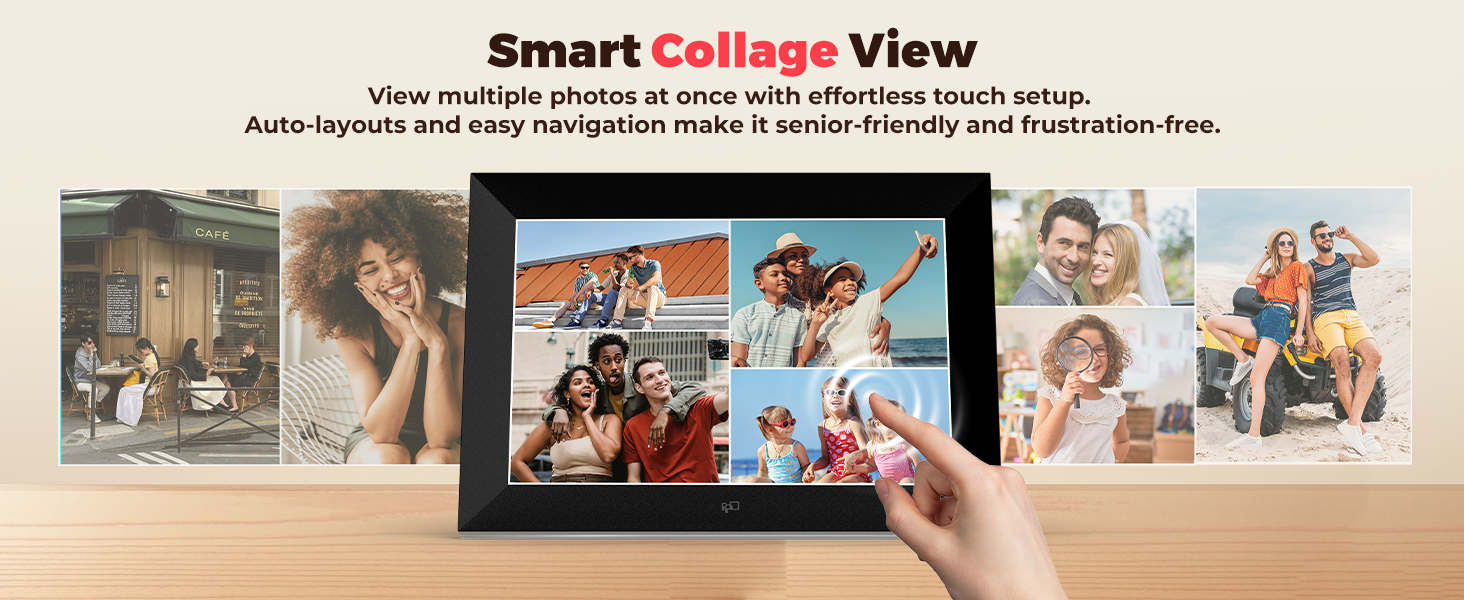
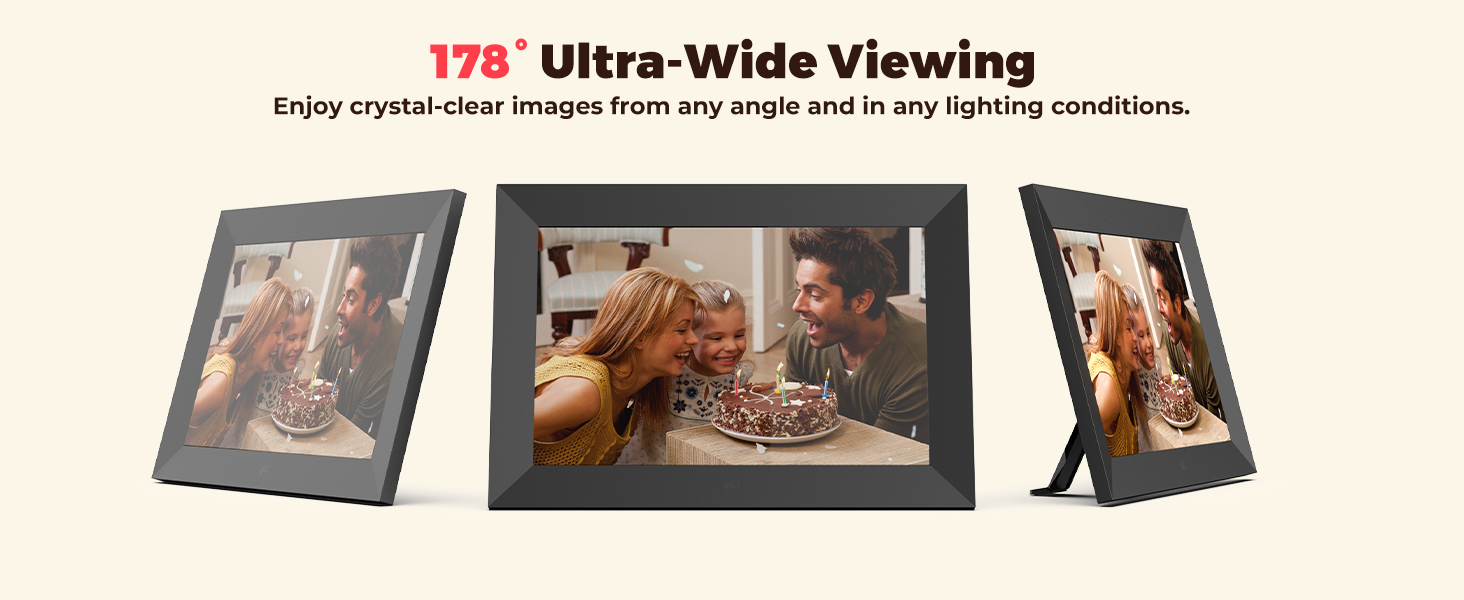
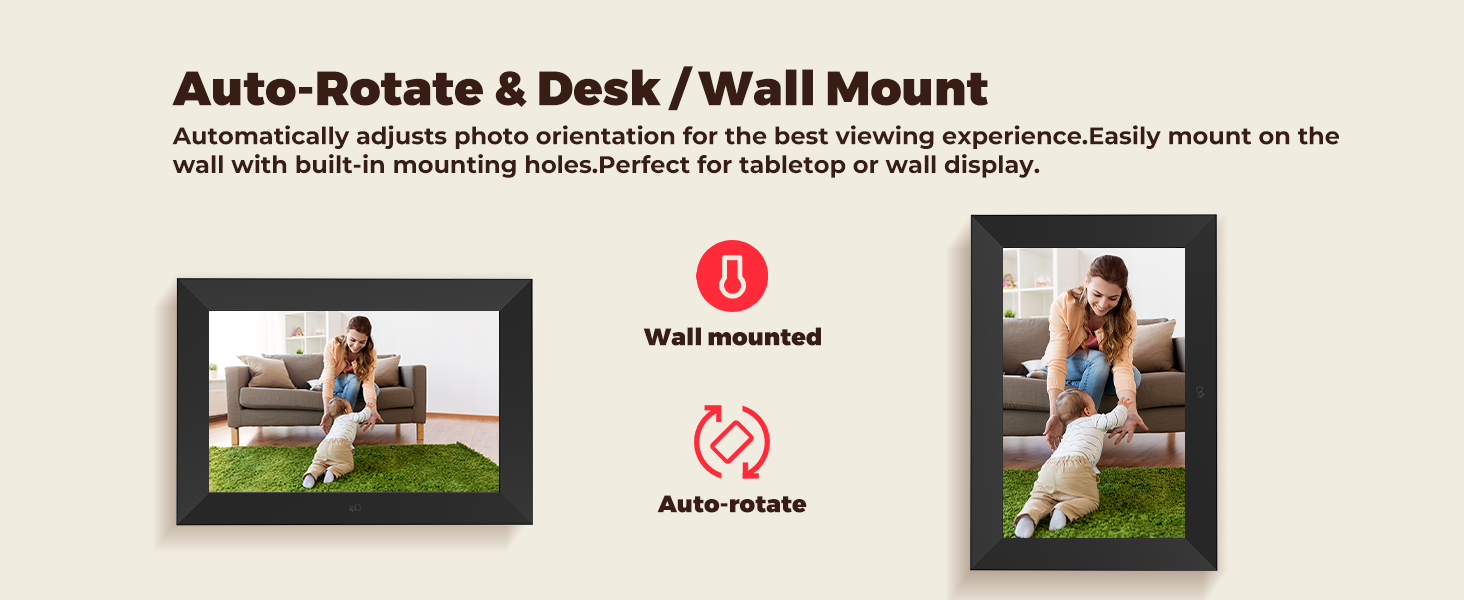
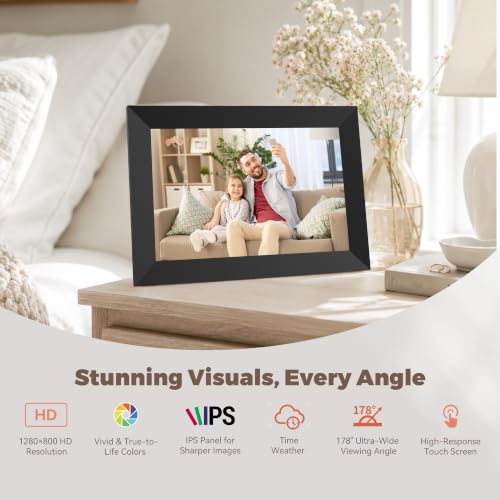
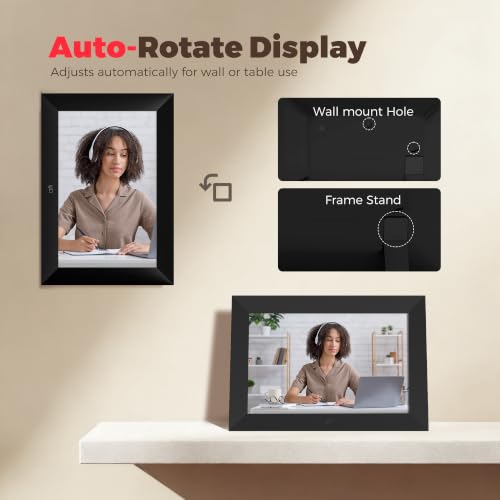
- 【Vivid Display, Intuitive Touch】Enjoy every detail on the 10.1-inch IPS touch screen (1280×800 HD). This Frameo digital photo frame can be set to sleep mode and saves energy by automatically turning the screen on and off. It also auto-rotates your photos for the perfect portrait or landscape view
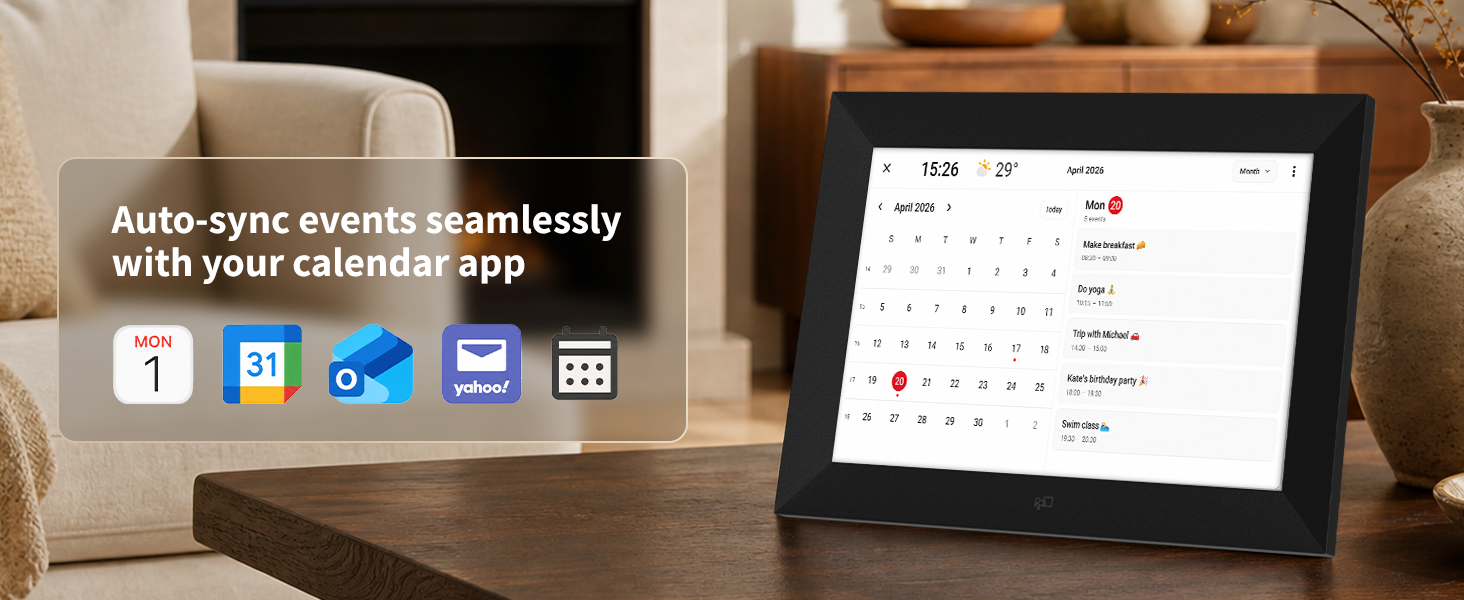
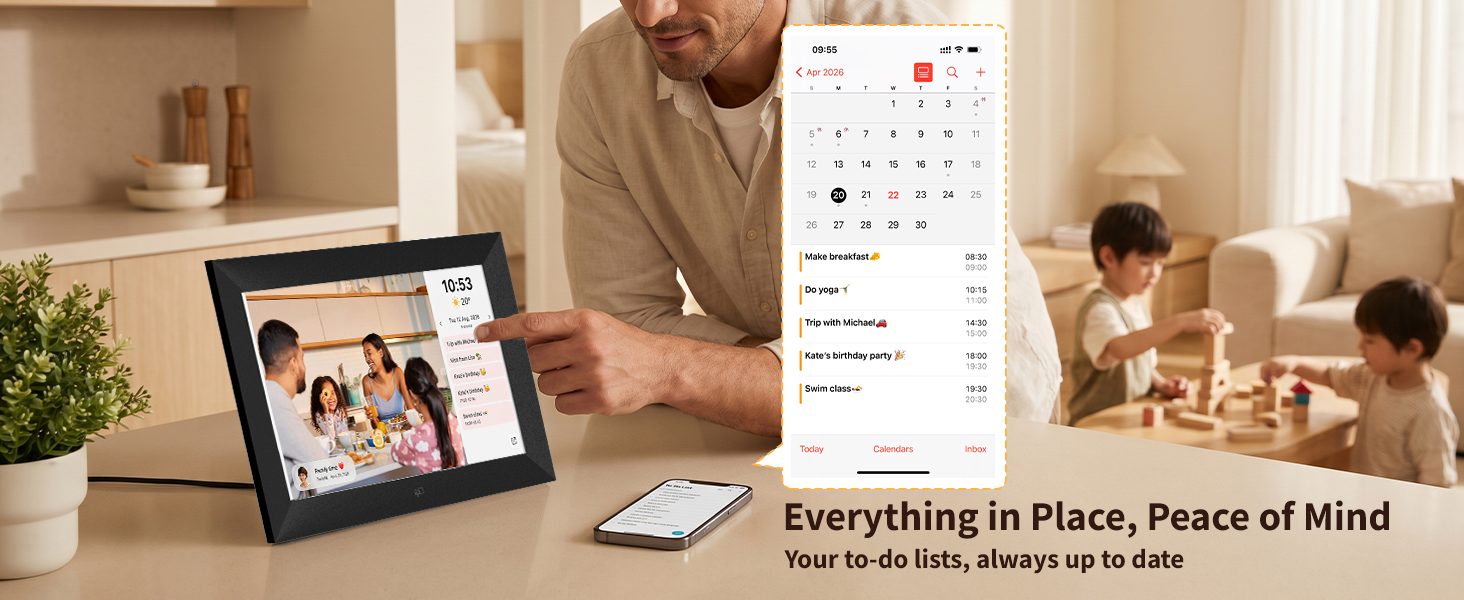
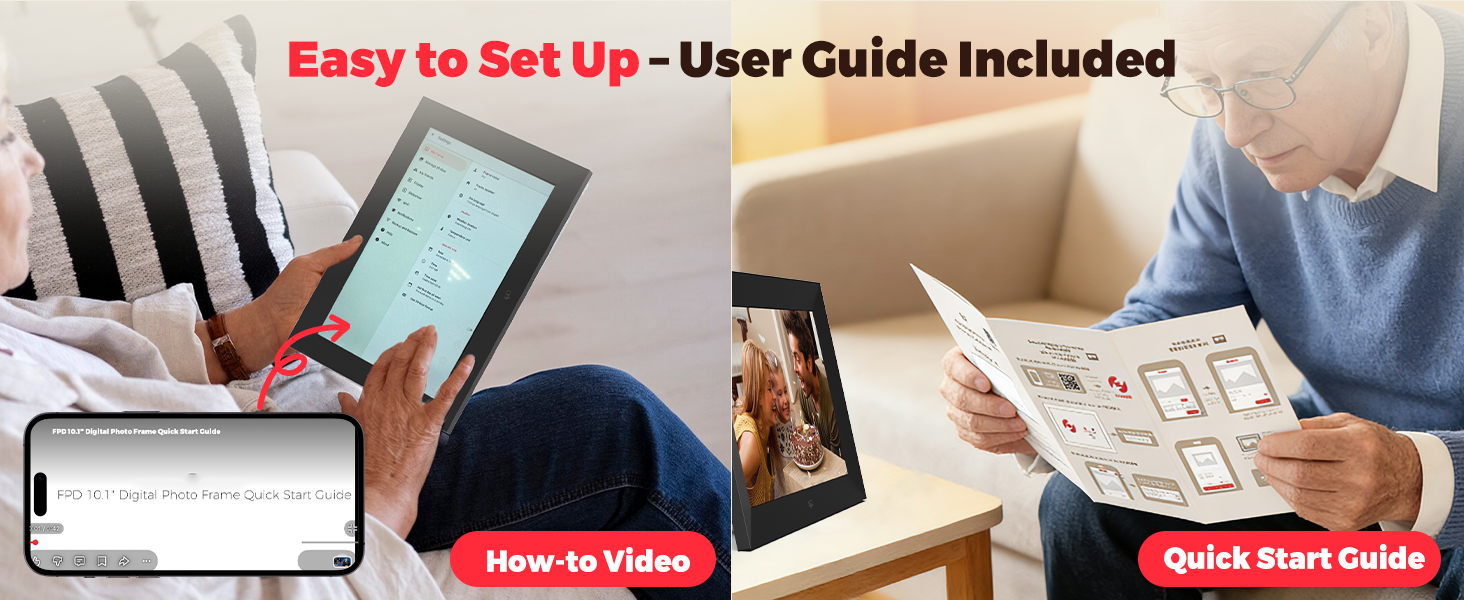
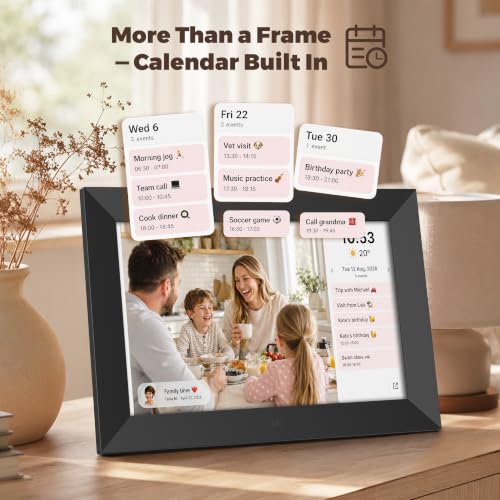
- 【Easy to Use for All Ages】Designed for everyone. A simple printed guide helps seniors get started effortlessly. Enjoy added convenience with the built-in clock, calendar, and weather display on this smart picture frame. FPD’s official YouTube channel also offers step-by-step video tutorials
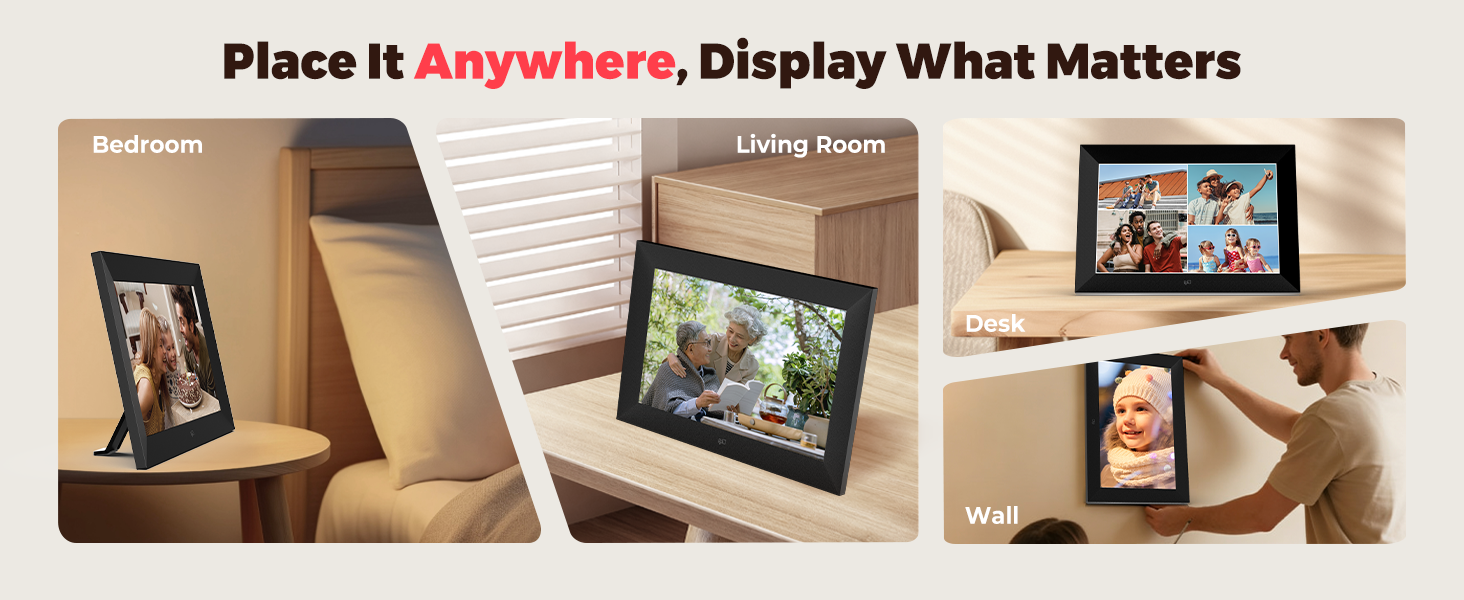
- 【Perfect Gift for Every Occasion】This photo frame boasts a sleek design that blends seamlessly into any room, with elegant gift-ready packaging. Pre-load memories to surprise your loved ones the moment they unbox it. Ideal for Christmas, Mother’s Day, weddings, and anniversaries. Backed by a 1-year warranty and dedicated support—bringing peace of mind to both givers and receivers






| SKU: | B0H1QHCMWS |
| Weight: | 600 Grams |
| Brand: | FPD |
| Colour: | Black |
| Manufacture: | FPD |
| Colour: | Black |
Product Description

How to transfer photos remotely ?
1: Connect the frame to Wi-Fi. 2: Open the Frameo app. 3:Scan the on-screen code or enter the pairing code. 4: Select photos/videos. 5: Tap “Send” to transfer
Is there an extra fee to send photos/videos ?
No. You can send up to 10 photos and 1 video of 15 sec per transfer at no extra cost. Frameo+ can be enabled as needed to send up to 100 photos and 1 video of 2 min per transfer.
How many photos can the frame store ? Can it display photos without Wi-Fi ?
With 32GB built-in storage, the frame can store about 40,000 photos based on 800KB each. Photos are stored locally, so they can be viewed normally without an internet connection.
How to Import via Micro SD Card ?
1.Insert the Micro SD card into the port on the back of the frame.
2.Go to Settings > Manage Photos > Import photos.
3.Select the photos/videos from the Micro SD card and import them.
How to Import via Computer ?
1. Connect the frame to your computer with a USB-A to USB-C cable.
2. Go to Settings > Manage Photos > Transfer from Computer and turn it on.
3. Open the frame folder on your computer and drag photos/videos into it.